
Samsung Galaxy S25 Screen Burn-In: Myths, Protection, and Fixes
Estimated reading time: 8 minutes

Key Takeaways
- Samsung Galaxy S25 screen burn-in issues are rare under normal use, thanks to advanced AMOLED mitigations.
- Built-in samsung galaxy s25 burn in protection features, like AOD auto-movement, actively reduce risk.
- Galaxy s25 recall rumors debunked: no evidence of mass recalls; problems are often user-induced.
- Samsung galaxy s25 plus screen problems may include faint glow on diagnostic screens, not necessarily true burn-in.
- Proactive steps like latest samsung galaxy s25 software updates and settings tweaks can prevent and address display concerns.
Table of contents
- Samsung Galaxy S25 Screen Burn-In: Myths, Protection, and Fixes
- Key Takeaways
- Introduction: Understanding the Concern
- What is Screen Burn-In?
- Causes of Screen Burn-In on Galaxy S25
- Symptoms of Screen Burn-In
- Debunking Recall Rumors
- S25 vs. S25 Plus: A Comparison
- Unique S25 Plus Screen Problems
- Troubleshooting Tips and Fixes
- Software Updates and Their Role
- Built-In Burn-In Protection Features
- Additional Settings and Tweaks
- Third-Party Apps for Protection
- Frequently Asked Questions
Introduction: Understanding the Concern
Recent reports of samsung galaxy s25 screen burn in issues have sparked user concerns and online rumors, but it’s crucial to separate fact from fiction. Samsung’s advanced AMOLED displays include built-in mitigations, making burn-in rare under normal use. These samsung galaxy s25 burn in protection features are also relevant for addressing samsung galaxy s25 plus screen problems across the series. Screen burn-in refers to permanent image retention on AMOLED displays, typically caused by prolonged static images like navigation bars or Always On Display (AOD) elements. However, Samsung’s design philosophies actively mitigate this risk, as discussed in community forums (source). For more on display evolution, see our comparison of the Samsung Galaxy S24 Ultra alongside the S23 Ultra.
Its significance is highest for heavy AOD users or those with static content on-screen for extended periods, as it’s otherwise a rare occurrence. Understanding this helps dispel unnecessary panic and encourages proactive habits for display longevity.

What is Screen Burn-In?
Screen burn-in is the phenomenon where static images degrade AMOLED pixels over time, leaving faint ghosts—like top bars—visible even on black screens. On the Samsung Galaxy S25, this primarily impacts users with constant AOD, though the display automatically moves elements like clocks to reduce risk. Integrating the keyword samsung galaxy s25 screen burn in issues here highlights the built-in safeguards (community insights). For a broader look at smartphone pros and cons, check out our guide to latest smartphone releases 2024.
“Burn-in is often misunderstood; it’s a cumulative effect of pixel wear, not an instant defect.” – Tech Community Perspective
Causes of Screen Burn-In on Galaxy S25
Common causes include:
- Prolonged static images from AOD, lock screens, or apps with fixed UI elements like top bars.
- General use rarely causes it, but heavy usage patterns can increase risk.
When comparing to similar risks on the Plus model, place keywords like samsung galaxy s25 screen burn in issues and samsung galaxy s25 plus screen problems to contextualize the discussion (source). This is a consideration across modern display tech, as explored in our article on foldable phones technology.
Symptoms of Screen Burn-In
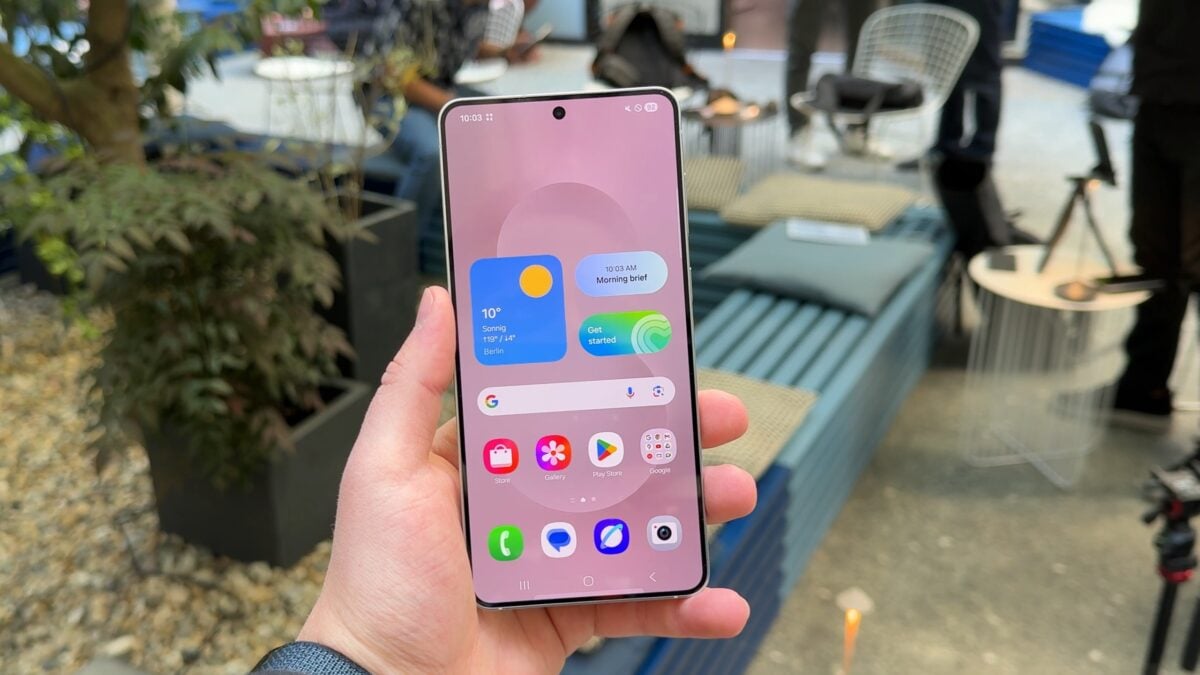
Symptoms appear as faint, persistent outlines of static elements like an AOD clock or navigation bars visible on solid black or white test screens. Weave in samsung galaxy s25 screen burn in issues naturally here, noting that early detection can help mitigate further damage. Community reports emphasize checking via diagnostic tools (reference).

Debunking Recall Rumors
It’s time to debunk galaxy s25 recall rumors debunked by stating there’s no evidence of a Samsung Galaxy S25 recall for screen burn-in. Rumors are unfounded since issues are user-induced and not widespread hardware defects. Official context shows Samsung has not issued recall statements; community reports attribute problems to usage rather than systemic failure, and replacements happen case-by-case. Separate facts (burn-in is preventable and rare) from fiction (no mass recall or design flaw) (additional insights).
S25 vs. S25 Plus: A Comparison
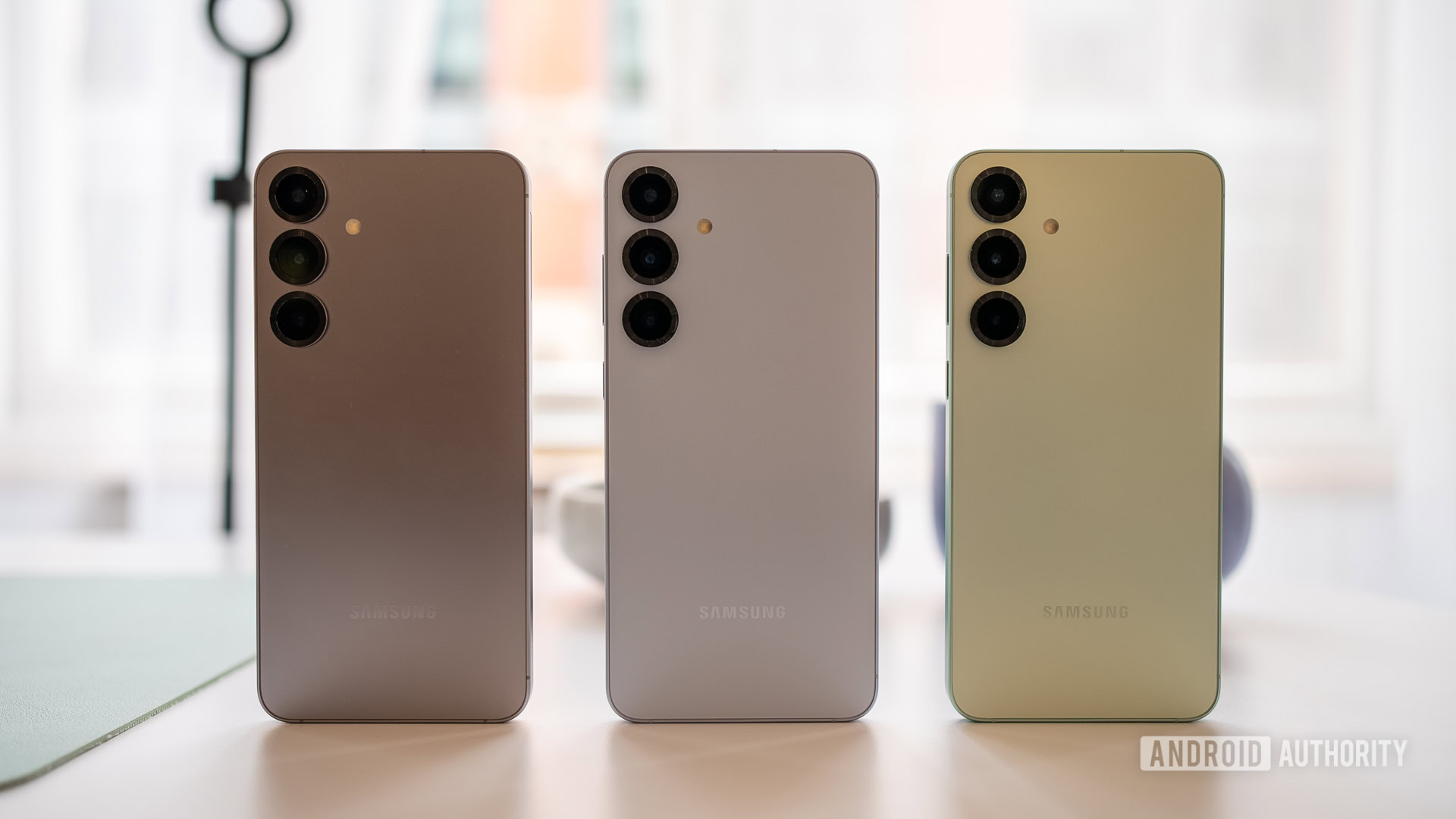
When comparing screen burn-in issues between the Samsung Galaxy S25 and samsung galaxy s25 plus screen problems, note that both share AMOLED risks from AOD/static images. However, S25+ reports often focus on glow during black diagnostic tests (*#0*#), not true burn-in, while the standard S25 ties more directly to AOD. Integrate samsung galaxy s25 screen burn in issues to highlight this nuance.
Unique S25 Plus Screen Problems
Highlight unique samsung galaxy s25 plus screen problems as faint gray light on black diagnostic screens while charging (not gallery blacks), possibly firmware-related or intentional for burn-in detection, and not visible in normal use. Samsung continues to innovate in display durability, as seen in the evolution of their foldable Z Fold series.
Troubleshooting Tips and Fixes
Provide troubleshooting tips for samsung galaxy s25 plus screen problems:
- Enable Extra Dim in quick settings for true blacks.
- Run diagnostic tests via *#0*#.
- Wipe cache partition via recovery mode.
- Test for burn-in with solid color images or apps like Display Tester (guide).
For other device-specific fixes, learn how Nothing addressed similar glyph lighting issues.
Software Updates and Their Role
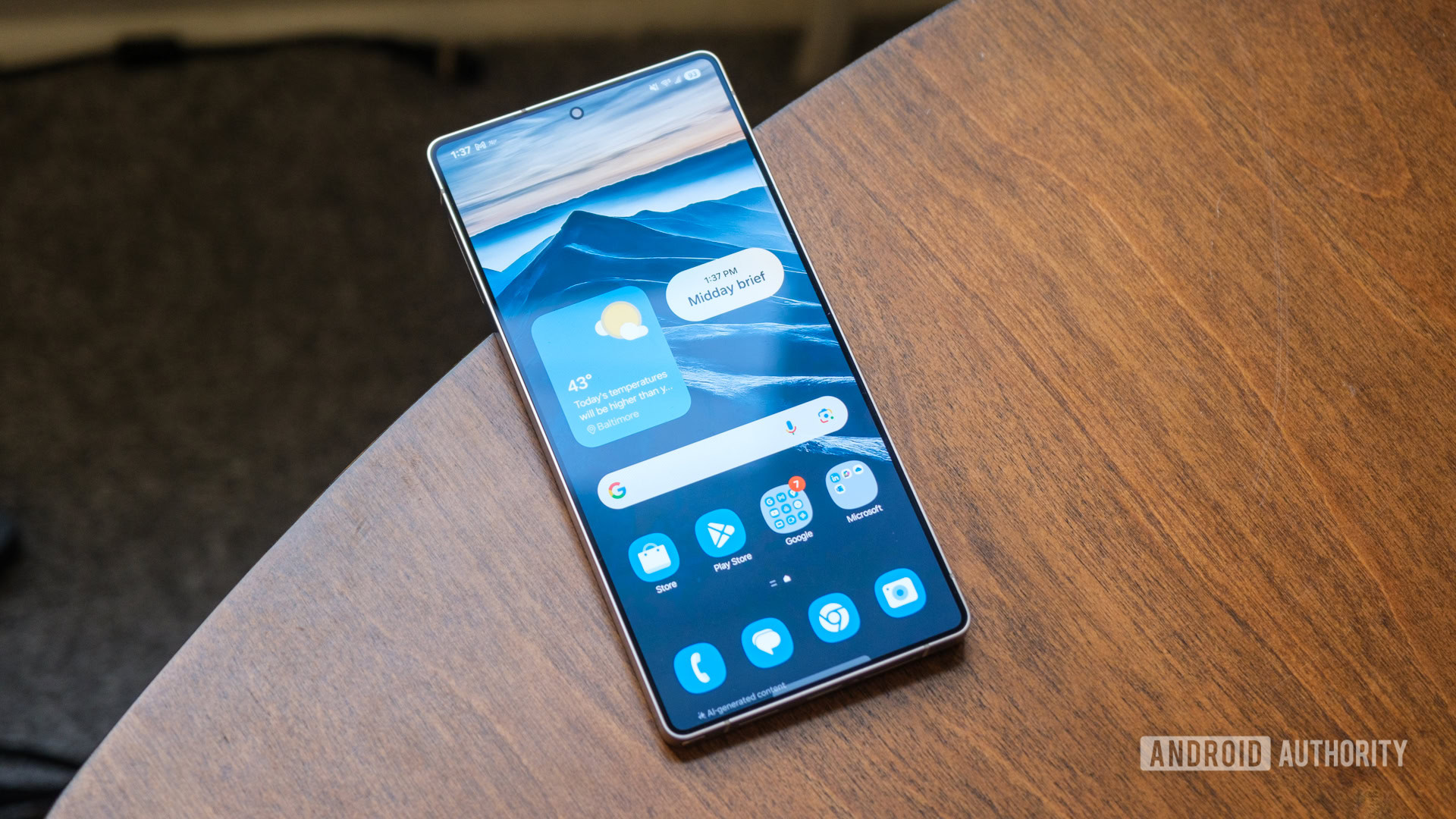
Cover latest samsung galaxy s25 software updates with an overview: recent updates address display quirks like graininess (improved in S25 Ultra over S24) but no direct burn-in fixes. They mitigate issues by optimizing pixel refresh and AOD behavior. Step-by-step instructions:
- Go to Settings > Software update > Download and install.
Tie this to helping with samsung galaxy s25 screen burn in issues by ensuring your device runs the latest firmware.
Built-In Burn-In Protection Features
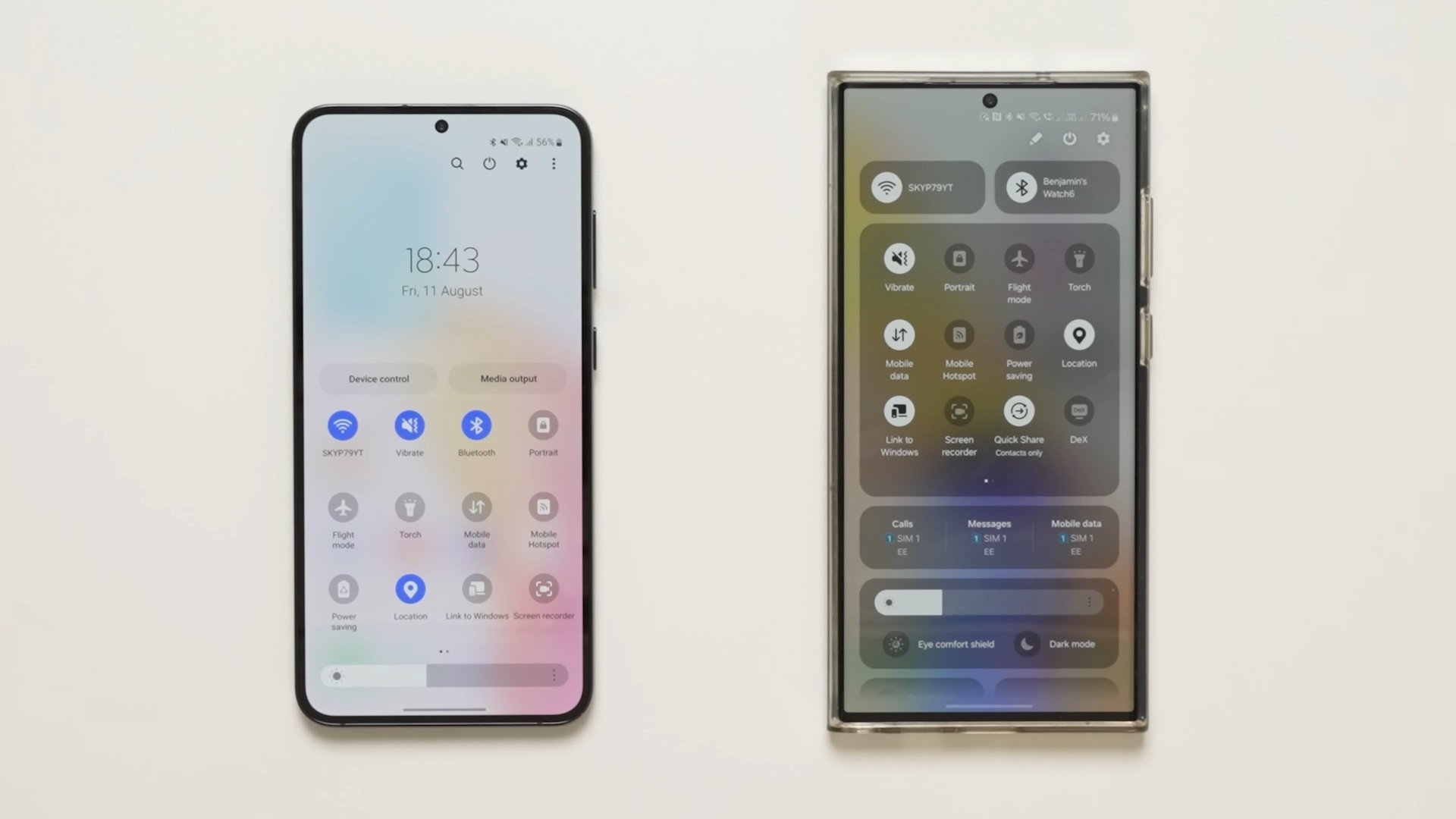
Explain samsung galaxy s25 burn in protection features starting with built-in ones:
- AOD auto-moves clocks/elements periodically.
- Schedules AOD off (e.g., during night or sleep).
- Face-down detection turns off the display.
- Hides navigation bars in apps to reduce static elements.
These features are detailed in community discussions (source).
Additional Settings and Tweaks
Detail additional settings for enhanced samsung galaxy s25 burn in protection features:
- Lower brightness via Modes and Routines, especially at night.
- Enable dark mode system-wide to reduce pixel strain.
- Avoid static images by changing wallpapers frequently.
- Schedule AOD off during inactive hours.
- Test for burn-in with *#0*# or solid colors regularly.
These tweaks, combined with updates, can significantly prolong display life (reference).

Third-Party Apps for Protection
Discuss third-party apps for samsung galaxy s25 burn in protection features:
- Screen test apps like Display Tester or Screen Test for monitoring pixel health.
- Note: no reversal tools exist—severe cases may require display replacement.
Watch tutorials like this one for visual guides on using these tools.
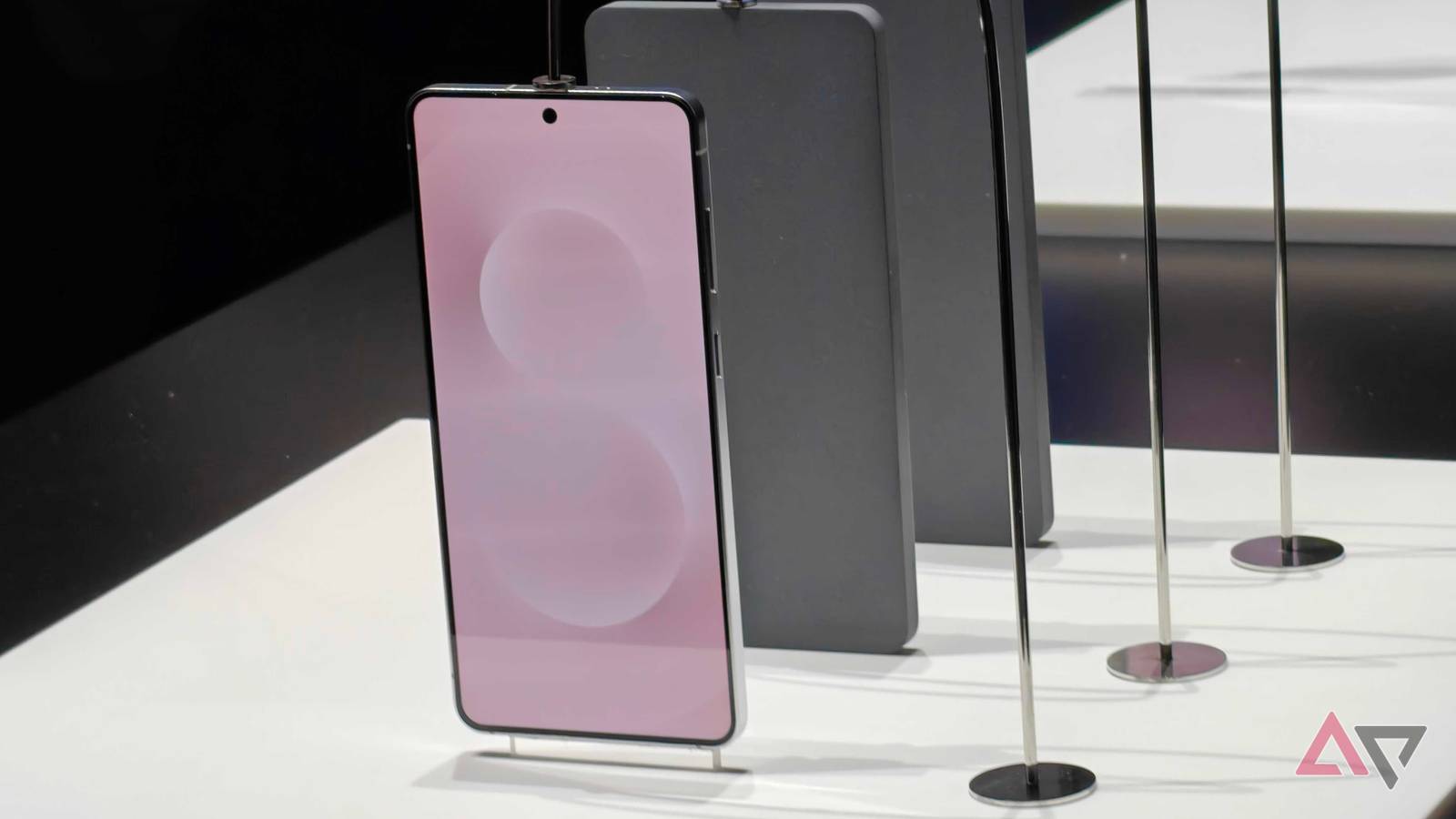
In summary, samsung galaxy s25 screen burn in issues are rare and user-preventable via AOD tweaks, latest samsung galaxy s25 software updates, and built-in protections, with galaxy s25 recall rumors debunked and samsung galaxy s25 plus screen problems having workarounds like understanding that glow isn’t true burn-in. Reinforce prioritizing built-in protections, updates, and tests for display longevity.
Frequently Asked Questions
Q: Does using Always On Display (AOD) cause screen burn-in on the Galaxy S25?
A: While AOD can contribute to burn-in risk, Samsung’s built-in protections, such as auto-moving elements and scheduling, mitigate this. It’s rare under normal use, but heavy users should enable AOD off periods (learn more).
Q: Is there a recall for Samsung Galaxy S25 due to screen burn-in?
A: No, recall rumors are unfounded. Issues are typically user-induced, and Samsung has not issued any mass recalls. Problems are addressed case-by-case (details here).
Q: How can I check for screen burn-in on my Galaxy S25?
A: Run a diagnostic test by dialing *#0*# or use solid color images from apps like Display Tester. Look for faint outlines of static elements on black or white screens (step-by-step guide).
Q: What’s the difference between screen burn-in issues on the S25 and S25 Plus?
A: The S25 Plus may show faint gray light on diagnostic screens, often firmware-related, while the standard S25 risks are more tied to AOD. Both have similar protection features (comparison insights).
Q: Can software updates fix existing screen burn-in?
A: Software updates optimize protections and may reduce future risk, but they cannot reverse existing burn-in. For severe cases, display replacement is needed. Keep your device updated for best performance (update info).
Share your experiences with AOD usage, samsung galaxy s25 screen burn in issues, fixes, or samsung galaxy s25 plus screen problems in the comments to help the community prevent burn-in. For more on Samsung’s innovations, explore their upcoming technology.