
iPhone Overheating After iOS Update: Causes and Fixes for iOS 18 & 26
Estimated reading time: 12 minutes
Key Takeaways
- iPhone overheating issues after iOS update have surged post-major releases like iOS 18 and iOS 26, often due to background tasks and app re-indexing.
- Common causes include unoptimized apps, high CPU usage, and battery strain, but proven fixes like force restarting and disabling background refresh can cool your device.
- Recent updates, especially iOS 26, trigger severe battery drain and overheating on Pro models like iPhone 16 Pro, with user reports of screen unresponsiveness.
- No direct recall for iPhone 15 Pro Max overheating exists; issues are typically software-related and fixable with updates or tweaks.
- Step-by-step troubleshooting includes force restart, updating apps and iOS, resetting settings, and using repair tools if needed.
- Prevention tips involve managing apps, avoiding beta updates, and keeping iOS current to minimize future overheating risks.
- Apple recommends waiting for re-indexing and seeking authorized service for persistent issues, while distinguishing between hardware and software problems is key.
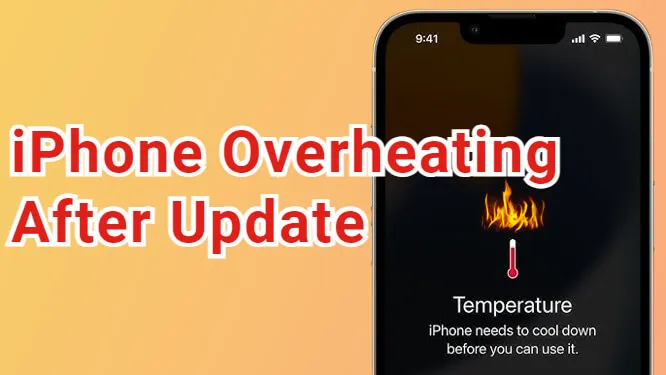
Table of contents
- iPhone Overheating After iOS Update: Causes and Fixes for iOS 18 & 26
- Key Takeaways
- Hook: The Surge in Overheating Issues
- Common Causes of Overheating Post-Update
- Recent iOS Updates and Their Impact
- Addressing iPhone 15 Pro Max Recall News
- iPhone 15 Pro Max vs iPhone 16 Pro: A Comparison
- Latest iOS Update Issues and Troubleshooting
- Step-by-Step Troubleshooting Guide
- Prevention Tips for Future Updates
- Apple’s Response and Recommendations
- Identifying Hardware vs Software Issues
- Guide to Safe Updates and Resources
- Frequently Asked Questions
Hook: The Surge in Overheating Issues
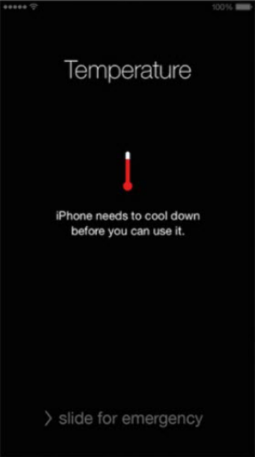
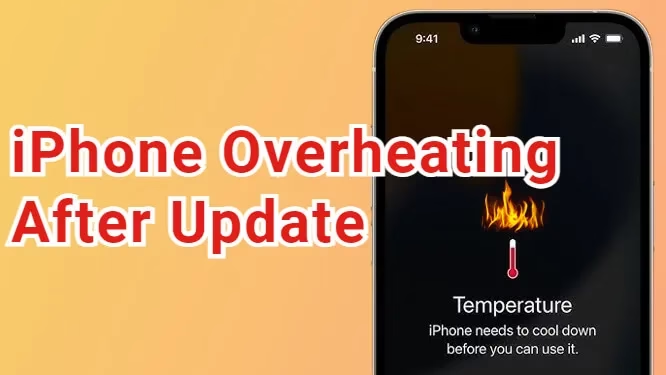
Have you felt your iPhone turning into a handheld heater after a software update? iPhone overheating issues after iOS update have skyrocketed, particularly following major releases like iOS 18 and iOS 26, where devices grow hot during background tasks and app re-indexing. According to Dr. Fone, SlashGear, and ReiBoot, many users—including those with iPhone 15 Pro Max and iPhone 16 Pro—report devices running uncomfortably warm, leading to performance drops and battery anxiety. This guide dives into the root causes, such as unoptimized apps and high CPU usage, and delivers proven fixes to cool your iPhone. We promise clear, step-by-step solutions to resolve overheating and restore that buttery-smooth performance you expect.
Common Causes of Overheating Post-Update
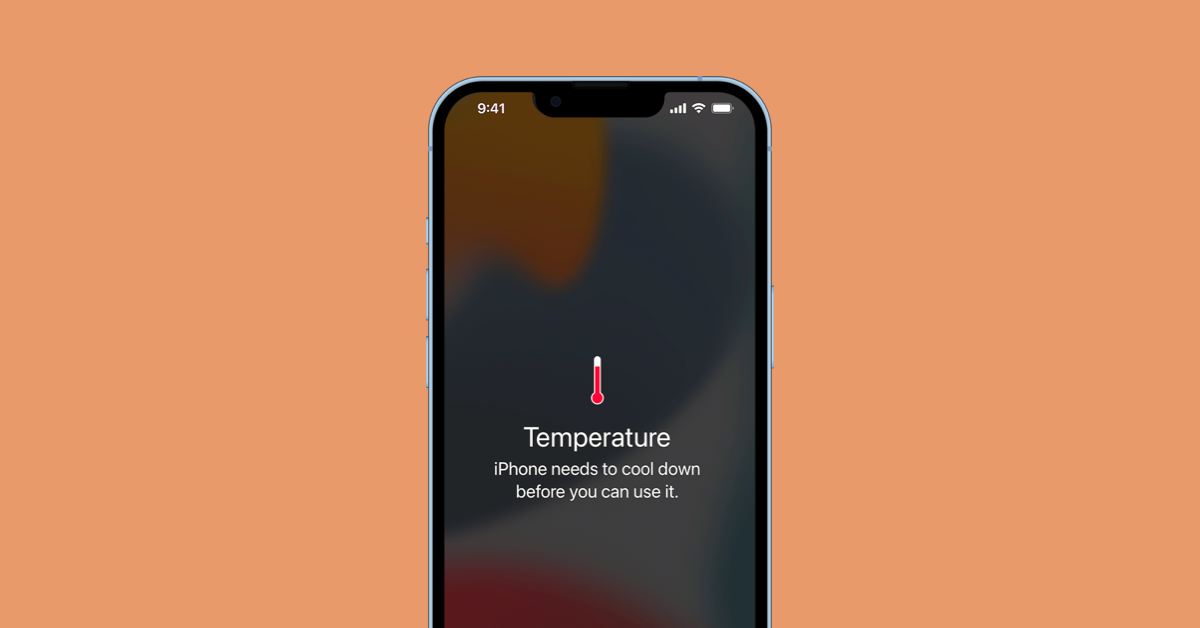
*Wondering why your iPhone feels like a space heater after updating?* Let’s unravel the typical suspects behind this thermal turmoil.
- Unoptimized Apps: Third-party apps not yet compatible with iOS 18 or iOS 26 betas can hog CPU resources, generating excess heat and draining your battery. As noted by Dr. Fone and ReiBoot, this is a prime culprit in iOS 18 update problems and solutions.
- Background Tasks: After an update, your iPhone re-indexes files for Spotlight search, refreshes apps, and reorganizes data—a process that spikes heat temporarily. This usually lasts 24-48 hours but can linger if stuck, per Dr. Fone, SlashGear, and Apple Discussions.
- Battery Strain and Processor Overload: Rapid battery drain from updates or syncs elevates internal temperatures, stressing the processor. Dr. Fone, SlashGear, and this YouTube analysis highlight this as part of latest iOS update issues and troubleshooting tips.
In short, these factors combine to turn your iPhone into a pocket warmer—but don’t worry, fixes are at hand.
Recent iOS Updates and Their Impact
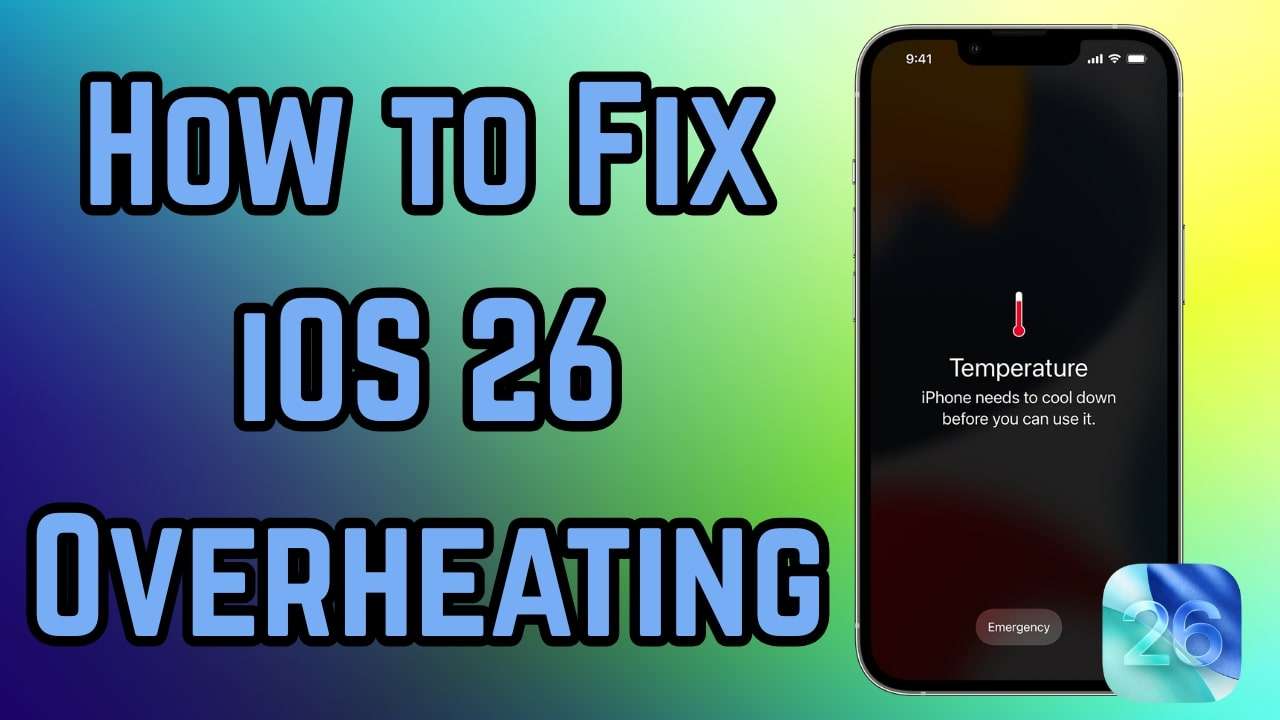
iOS 18 and iOS 26 betas and stable releases have intensified iPhone overheating issues after iOS update through heavy processing demands. iOS 26, in particular, causes severe battery drain and overheating on Pro models like iPhone 16 Pro even during light tasks, as reported by Dr. Fone, SlashGear, YouTube, and ReiBoot. Users also note screen unresponsiveness and freezing alongside thermal issues. *These updates pack new features but also glitches—let’s break it down.* For deeper insights, explore our articles on iOS 18.4 Beta 3 and iOS 18.3.2 features.
Addressing iPhone 15 Pro Max Recall News
*Rumors swirl, but facts point to software fixes first.* There’s no confirmed direct recall for iPhone 15 Pro Max overheating; historical threads link it to post-update indexing akin to iOS 26 issues, suggesting Apple inspection if problems persist, per Apple Discussions. Overheating often stems from software, not hardware, as echoed by Dr. Fone and Apple Discussions. So, before fretting over Apple iPhone 15 Pro Max recall news, tackle software solutions—they usually do the trick.
iPhone 15 Pro Max vs iPhone 16 Pro: A Comparison
*See how your model stacks up?* This table contrasts issues and fixes for these flagship devices:
| Aspect | iPhone 15 Pro Max | iPhone 16 Pro |
|---|---|---|
| Primary Issues | Indexing after updates causes short-term heat/drain (source: Apple Discussions) | Rapid drain, overheating on iOS 26 even during light use (sources: SlashGear and YouTube) |
| Common Fixes | Wait 24-48 hours, restart, check updates (sources: YouTube and Apple Discussions) | Disable background refresh, update apps, force restart (sources: Dr. Fone, SlashGear, and ReiBoot) |
| Severity | Often resolves naturally post-reindex (source: Apple Discussions) | Affects Pro lineup more, may need repair tool or patch (sources: SlashGear and YouTube) |
Both models benefit from similar fixes, but iOS 26 impacts newer Pros more severely. For a broader perspective, check our guide on iOS 18 supported devices.
Latest iOS Update Issues and Troubleshooting
iOS 26.1 continues to cause overheating from file reorganization; monitor for over 48 hours, and seek Apple service if unresolved, as advised by SlashGear and Apple Discussions. General tips include updating iOS and apps, plus restarting—key elements of latest iOS update issues and troubleshooting tips. *Ready to fix it? Here’s how.*
Step-by-Step Troubleshooting Guide
Follow this numbered list to tackle iOS 18 update problems and solutions, iPhone 16 Pro battery drain fixes, and latest iOS update issues and troubleshooting tips. *Try these in order for best results.*
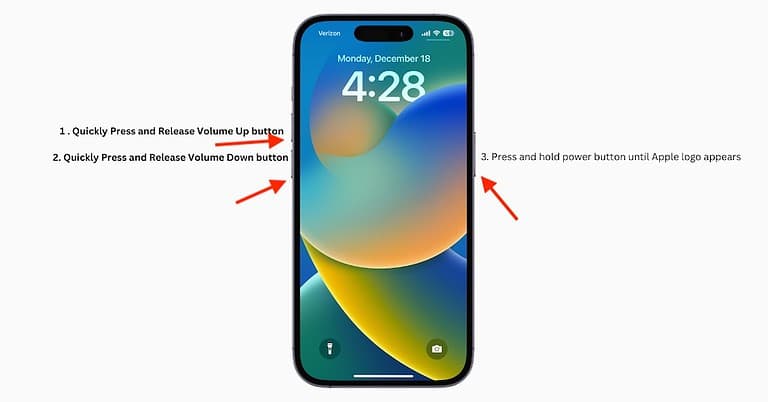
- Force restart: Press Volume Up, then Volume Down, hold Side button until Apple logo appears. Sources: Dr. Fone and YouTube.
- Disable Background App Refresh: Go to Settings > General > Background App Refresh > Off. Sources: Dr. Fone and ReiBoot.
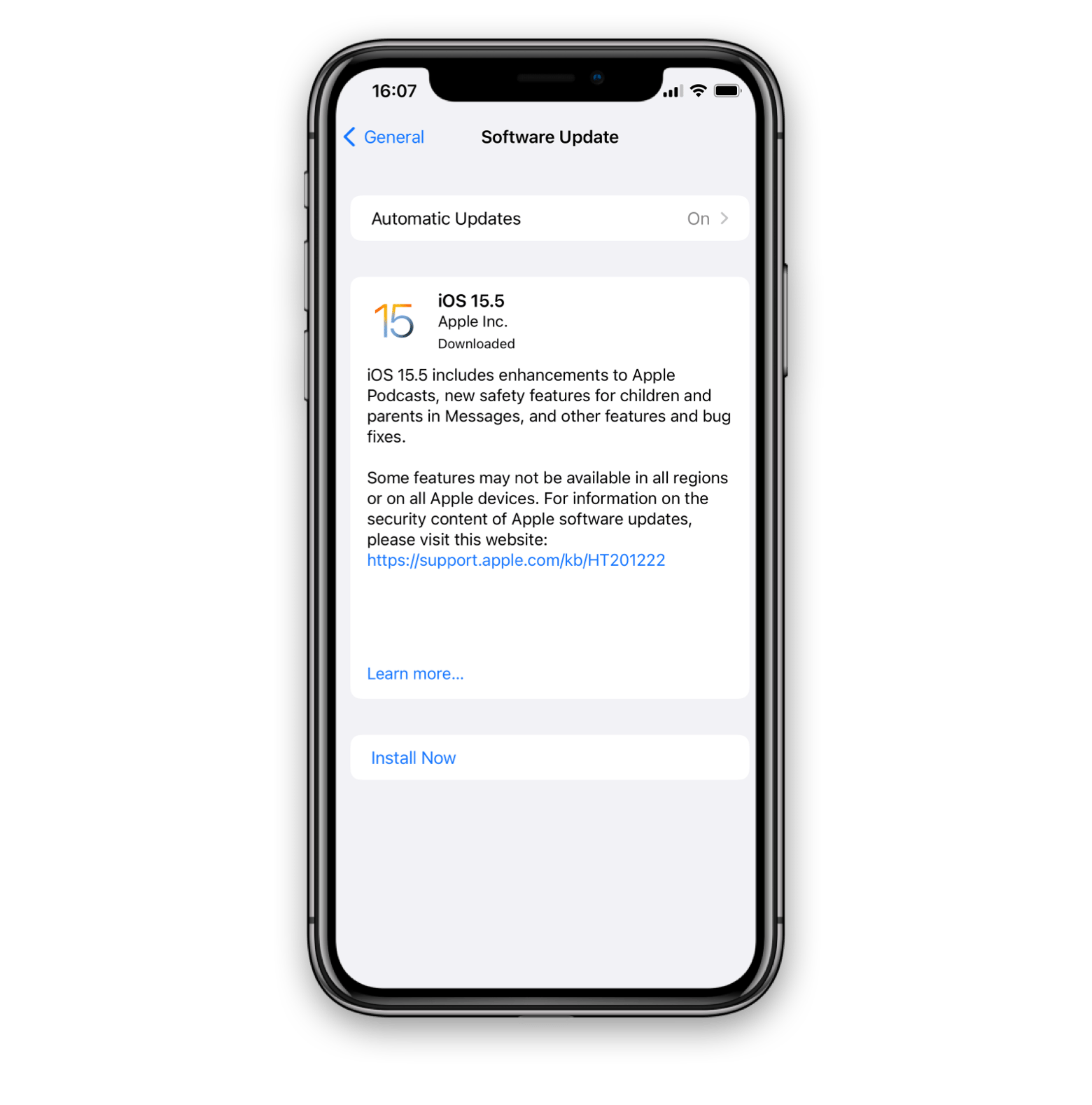
- Update apps and iOS: Navigate to Settings > General > Software Update; also check the App Store. Sources: YouTube and ReiBoot. Staying current is vital—learn more in our iOS 18.5 update overview.
- Reset settings: Access Settings > General > Transfer or Reset > Reset > Reset All Settings. Source: Dr. Fone.
- Lower screen brightness: Enable Auto-Brightness in Settings > Display & Brightness. Source: ReiBoot.
- Disable Location Services: Head to Settings > Privacy & Security > Location Services > Off for non-essential apps. Source: ReiBoot.
- Use repair tool or wait: Consider tools like Dr.Fone or ReiBoot for deep fixes, or await official patches. Sources: Dr. Fone and ReiBoot.
- Simple restart if hot: A basic restart can clear minor glitches. Source: YouTube.
*Quote:* “A quick force restart often nips overheating in the bud,” as one user shared.
Prevention Tips for Future Updates
To dodge iPhone overheating issues after iOS update, adopt these habits:
- Manage apps by closing unused ones and periodically calibrating your battery with full charge/discharge cycles. Source: Dr. Fone.
- Avoid beta updates unless you’re testing; stick to stable iOS versions for optimizations. Sources: Dr. Fone and YouTube.
- Keep your device in a cool environment during updates and avoid intensive tasks right after installing new iOS versions.

Apple’s Response and Recommendations
Apple advises waiting for re-indexing (which can take days) and visiting authorized service centers for hardware checks if overheating persists. Patches are routinely released to fix beta bugs, per Dr. Fone and Apple Discussions. *In essence, patience and professional help are key.*
Identifying Hardware vs Software Issues
For effective latest iOS update issues and troubleshooting tips, discern between hardware and software: software issues are post-update or transient (e.g., indexing), while hardware issues are persistent. Test by booting in safe mode or consulting Apple service, as suggested by Apple Discussions. *This distinction saves time and stress.*

Guide to Safe Updates and Resources
Always backup via iCloud before updating via Settings > General > Software Update; steer clear of betas for stability, per YouTube. Resources include Apple Support Communities for discussion threads and locating Authorized Service Providers, as noted in Apple Discussions. *Pro tip: Schedule updates during downtime to minimize disruption.*
Frequently Asked Questions
Here are answers to common queries about iPhone overheating:
- Why does my iPhone overheat after an iOS update?
Overheating is often due to background processes like re-indexing and unoptimized apps. It typically subsides within 24-48 hours, but if not, try the fixes above. - How can I fix overheating on my iPhone 16 Pro?
Start with a force restart, disable background app refresh, and ensure iOS and apps are up-to-date. These steps address iPhone 16 Pro battery drain fixes effectively. - Is there a recall for iPhone 15 Pro Max overheating?
No, there’s no confirmed recall. Overheating is usually software-related; refer to Apple iPhone 15 Pro Max recall news for context, but focus on software solutions first. - Should I avoid iOS beta updates?
Yes, unless you’re a developer or tester, avoid betas as they can introduce bugs that cause overheating and other issues. - When should I seek Apple service for overheating?
If overheating persists after trying software fixes for several days, or if you suspect hardware damage (e.g., persistent heat even in cool conditions), contact Apple Support promptly.
Your iPhone should run cool—try these fixes today and share your results in the comments!