
Build a Budget Gaming PC Build Under $500: Your 2024 Blueprint
Estimated reading time: 12 minutes
Key Takeaways
- You absolutely can build a powerful budget gaming pc build for under $500 that runs modern games at 1080p.
- The single most important part is choosing the right best gpu under 200 to maximize your frames per second (FPS).
- This guide provides a complete, step-by-step plan for a gaming setup under 500, from part selection to assembly and a detailed fps optimization guide.
- When comparing console vs pc performance at this price, a PC offers superior long-term value through upgrades, game sales, and versatility.
- No prior building experience is needed—every technical term is explained in simple, beginner-friendly language.
Table of contents
- Build a Budget Gaming PC Build Under $500: Your 2024 Blueprint
- Key Takeaways
- What “Budget” Gaming Performance Means in 2024+
- Console vs PC Performance at ~$500
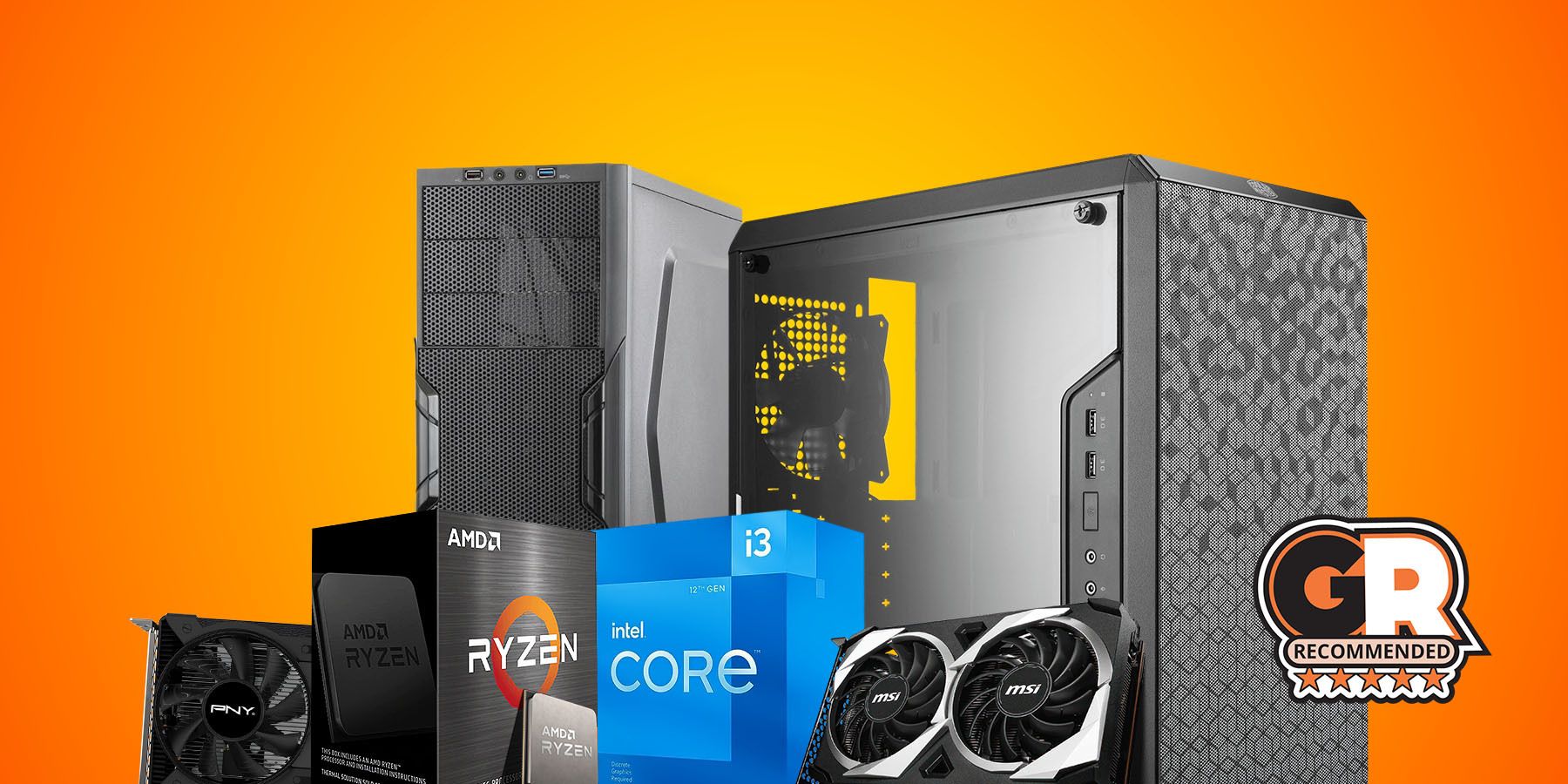
- Example $500 Budget Gaming PC Build (Tower Only)
- Step-by-Step Assembly Guide (Physical Build)
- First Boot, BIOS Settings, and OS Installation
- FPS Optimization Guide – Squeezing Maximum Performance
- Bringing It All Together for a $500 Gaming Setup
- Frequently Asked Questions
Let’s cut to the chase: in 2024, building a high-value budget gaming pc build for under $500 is not only possible, it’s a fantastic project for any gamer. Inspired by real-world builds like the GamersNexus “Cheap Bastard’s” guide, this blueprint will walk you through creating a gaming setup under 500 that delivers smooth 1080p gaming. This isn’t just theory; it’s a practical, actionable guide. You’ll get a specific parts list, a beginner-friendly assembly walkthrough, a concrete fps optimization guide, and a clear look at console vs pc performance to help you decide. No experience? No problem. We’ll explain every term and step along the way.
What “Budget” Gaming Performance Means in 2024+
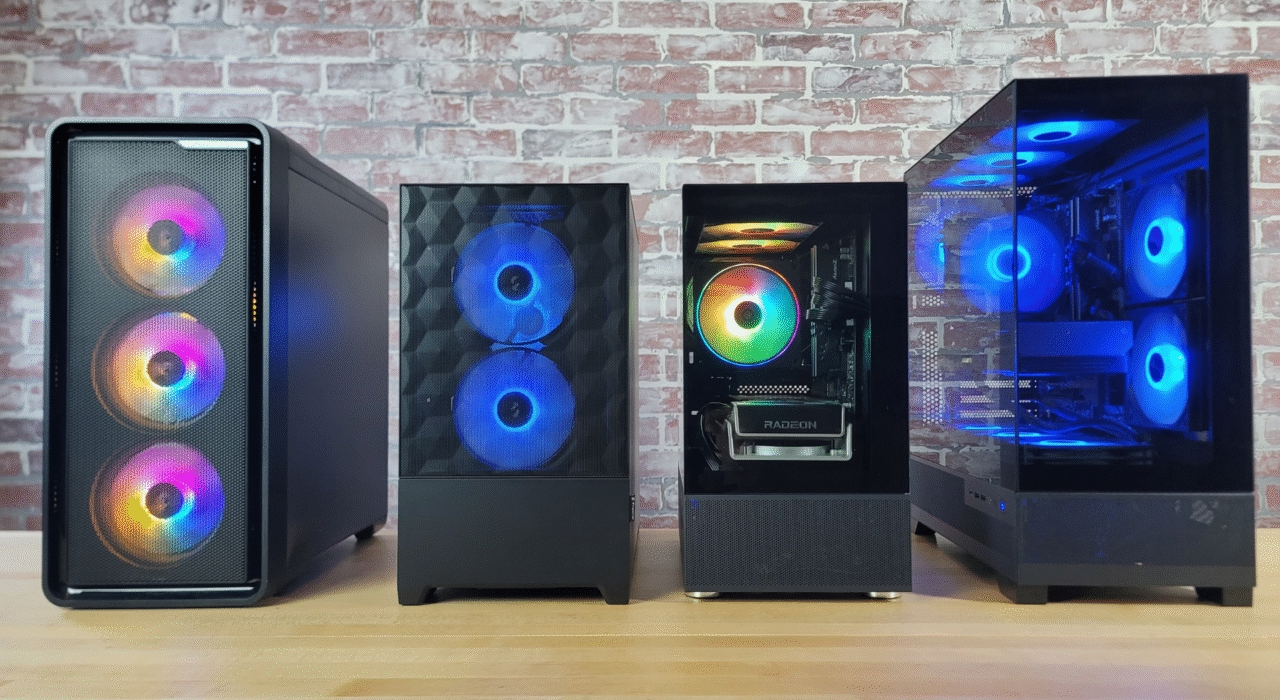
Before we pick parts, let’s define our terms. In this guide, “budget” means we’re building the PC tower only for roughly $400 to $500. This doesn’t include peripherals like a monitor, keyboard, or mouse. As proven by references like GamersNexus’s ~$479 build, this price range is perfectly realistic for a capable system.
So, what can you expect? The performance target for this budget gaming pc build is stable 1080p gaming. You’ll be able to play modern AAA titles at Low to Medium settings (and sometimes High in less demanding games) while hitting a smooth 60 FPS in popular esports titles like Valorant, CS2, and Fortnite. FPS, or frames per second, is the number of images your PC renders each second. Higher FPS means smoother, more responsive gameplay.
Be realistic about the limits: Ultra settings, ray tracing, and 1440p/4K gaming are not on the menu at this price. The goal is smooth, playable performance, not maximum visual fidelity. The magic that makes this possible? Choosing the right best gpu under 200, which we’ll dive into soon. And don’t worry, our later fps optimization guide will show you how to squeeze out every last drop of performance.
Console vs PC Performance at ~$500
If you’re researching a budget gaming pc build, you’re likely weighing it against a similarly priced console. Let’s break down the console vs pc performance debate at this $500 mark.
| Category | Budget Gaming PC (~$500 Tower) | Gaming Console |
|---|---|---|
| Upfront Cost | ~$480-$500 for the tower (based on budget build examples). | Console + controller, sometimes with a bundled game. |
| Performance | 1080p at Low-Medium settings. Performance can scale with future upgrades, starting with a better best gpu under 200 or beyond. Reference build shows playable 1080p. | Fixed performance level, tuned for specific games but not upgradable. |
| Upgradability | Fully upgradable. Swap the GPU, CPU, add more RAM or storage. A GPU upgrade alone can dramatically boost FPS. | Effectively locked. Only storage can be upgraded; requires a new console for more power. |
| Game Prices & Ecosystem | Frequent, deep discounts on Steam, Epic, etc. Vast free-to-play library. Full mod support. | More closed ecosystem. Discounts are less frequent and typically not as steep. |
| Versatility | A full computer. Use it for school, work, content creation, streaming, and general computing. | Primarily for gaming and media consumption. |
Why does the PC win for our target reader? Long-term value. The initial cost is similar, but a PC saves you money over time through insane game sales and the ability to upgrade piece by piece. You’re not buying a whole new box every 6-7 years. If you’re researching a gaming setup under 500, you likely value this flexibility and ownership. For a deeper dive, check out our detailed comparison of Best Gaming Consoles of 2025: PS5 vs Xbox Series X vs PC Gaming.
Example $500 Budget Gaming PC Build (Tower Only)
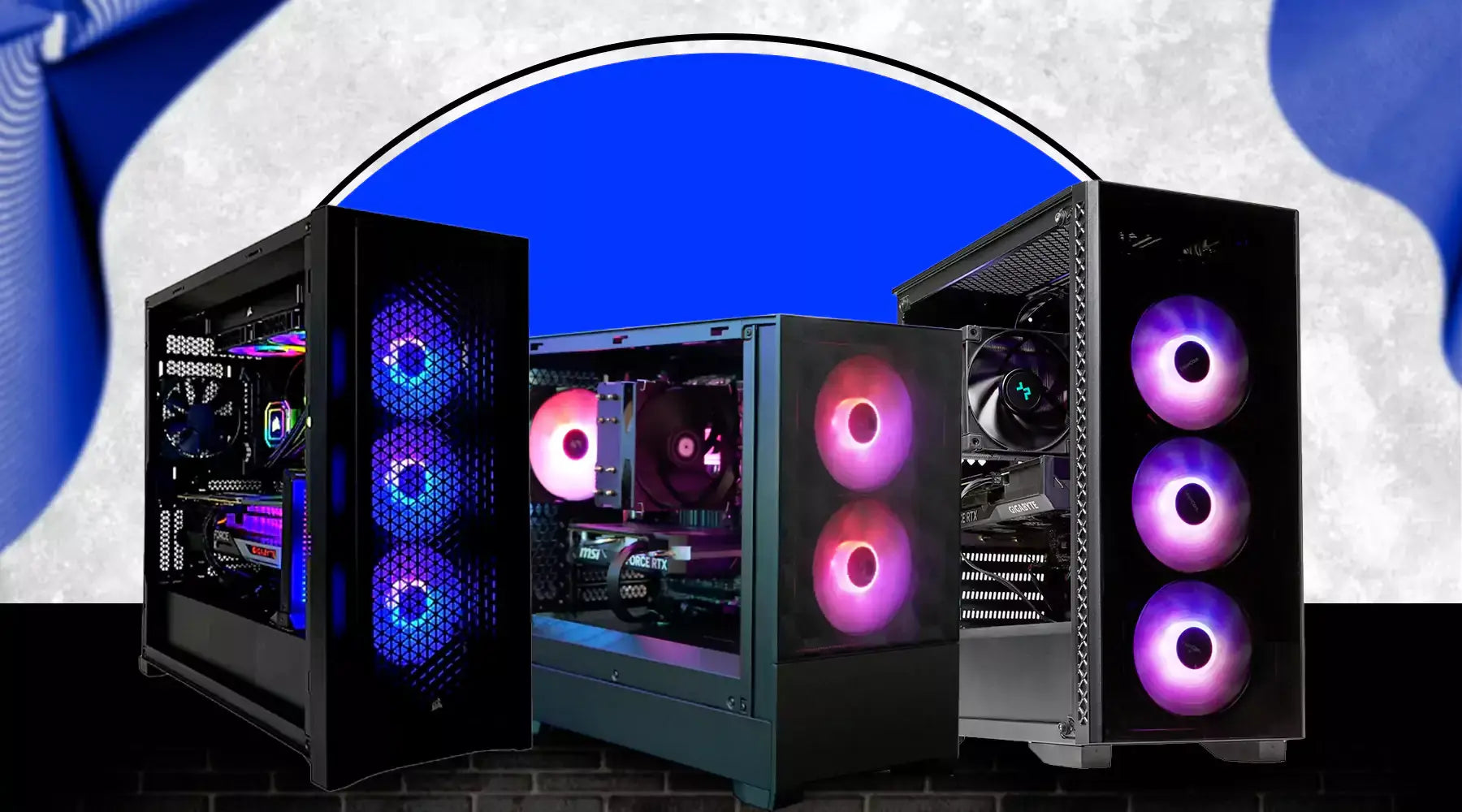
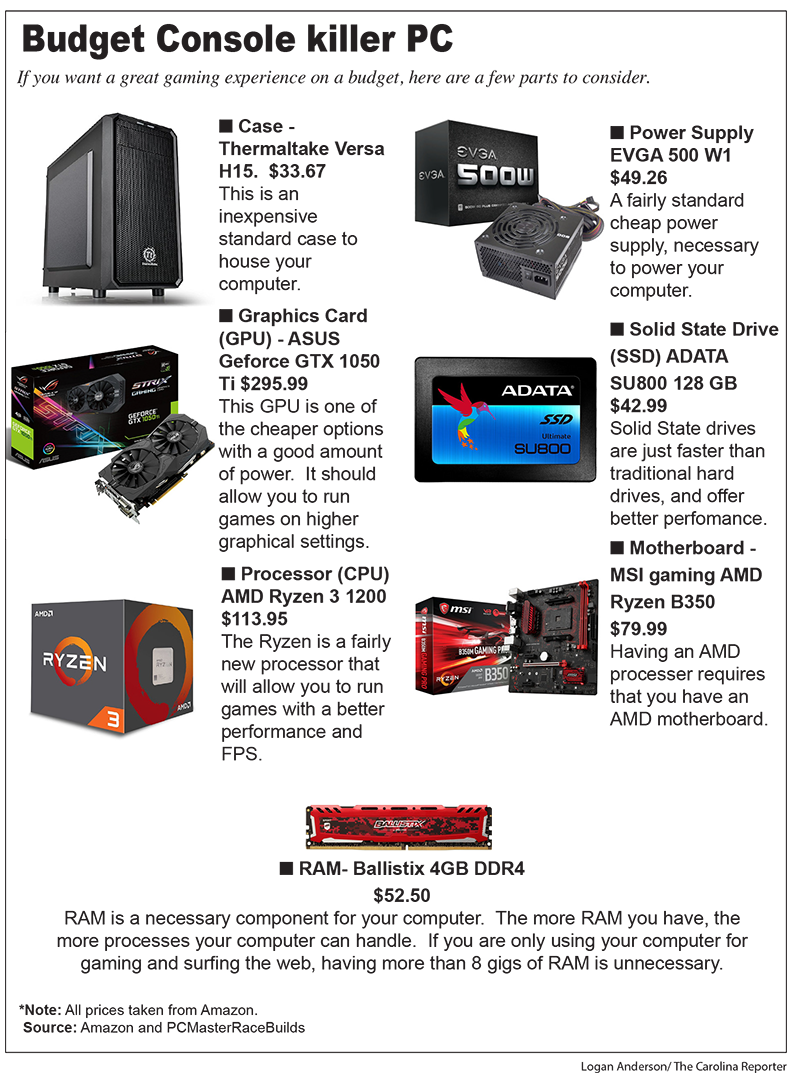
Here is your actionable blueprint for a budget gaming pc build. This example, inspired by the balanced approach of builds like the one from GamersNexus, targets the $480-$500 range. Exact parts and prices vary, but these component roles and spending ratios are your guide.
| Part | Example Class / Spec | Why It Fits a Gaming Setup Under $500 |
|---|---|---|
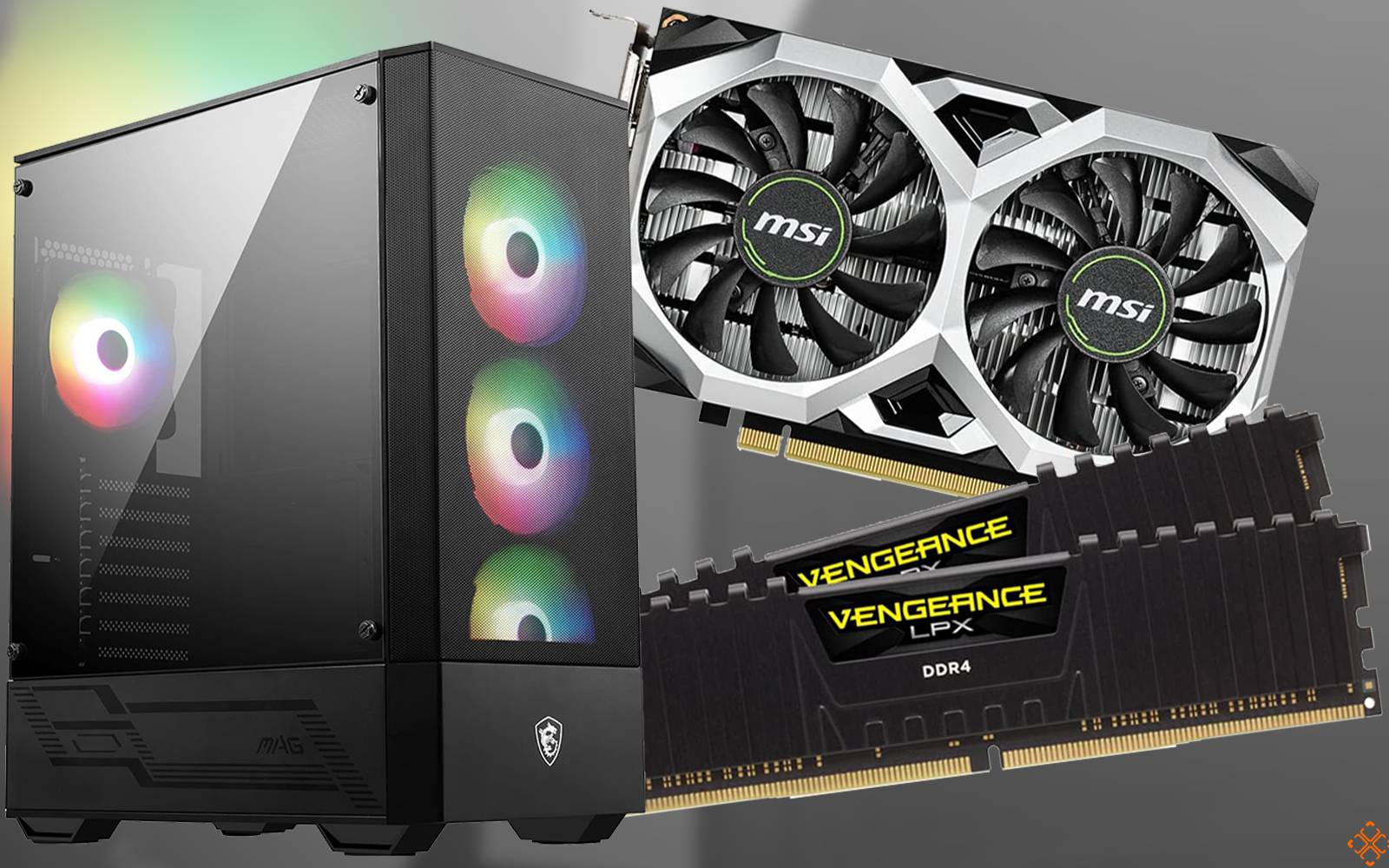
| CPU | Intel Core i3-12100F or AMD Ryzen 5 5500-class | 4-6 modern cores with high speed. Excellent 1080p gaming value and low power draw, as used in reference budget builds. |
| GPU | See dedicated section on the best gpu under 200 below. | The single biggest driver of FPS at 1080p. Allocate ~40-45% of your total budget here. |
| Motherboard | Basic B660 (Intel) or B550 (AMD) chipset | Supports your CPU, GPU (PCIe x16 slot), NVMe SSD, and has enough USB ports. Skip Wi-Fi/RGB to save money. |
| RAM | 16 GB (2×8 GB) DDR4, 3000-3200 MHz | 8 GB is insufficient for modern games; 16 GB is the sweet spot. Dual-channel (two sticks) doubles bandwidth for better performance. Reference builds use 16GB. |
| Storage | 500 GB – 1 TB NVMe SSD | An NVMe SSD (a super-fast type of drive that plugs into the M.2 slot) drastically cuts load times vs. an old hard drive. 500GB is enough for OS and several games. SSD is essential in modern builds. |
| PSU | 450W – 550W, 80+ Certified | Provides stable, clean power. 80+ certification means better efficiency (less wasted power/heat). Enough wattage for a sub-$200 GPU and future upgrades. A reputable PSU is critical. |
| Case | Budget ATX/micro-ATX with mesh front | Good airflow (mesh front, room for fans) is more important than looks. Keeps your components cool for sustained performance. |
Budget Allocation Strategy: To maximize FPS in your gaming setup under 500, spend roughly 40-45% of your budget on the GPU (your best gpu under 200), 20-25% on the CPU, and divide the rest among the other components. This prioritizes the part that matters most for 1080p gaming. For tips on smart shopping, see our guide on How to Shop for Tech Gadgets on a Budget.

Best GPU under $200 – Choosing the Right Graphics Card
The GPU, or Graphics Processing Unit, is the heart of your budget gaming pc build. It renders every frame you see. Choosing the best gpu under 200 is your most critical FPS decision. Here are the top contender “classes” in this price range.
- Intel Arc A580 8 GB (or similar): A standout in modern budget gaming pc build guides. It offers exceptional performance per dollar in DirectX 12 and Vulkan games. As noted in the GamersNexus sub-$500 build, drivers have matured but require staying up-to-date.
- AMD Radeon RX 6600 8 GB (when discounted): An efficient, mature 1080p champion. It sips power, runs cool, and has incredibly stable drivers. It’s a fantastic all-rounder for any game in your library.
- Older NVIDIA Option (e.g., GTX 1660 Super): If found new or used under $200, it remains a solid pick for esports and older DX11 games. The trade-off is typically less VRAM and lower performance-per-dollar than newer cards, but NVIDIA’s drivers are famously compatible.
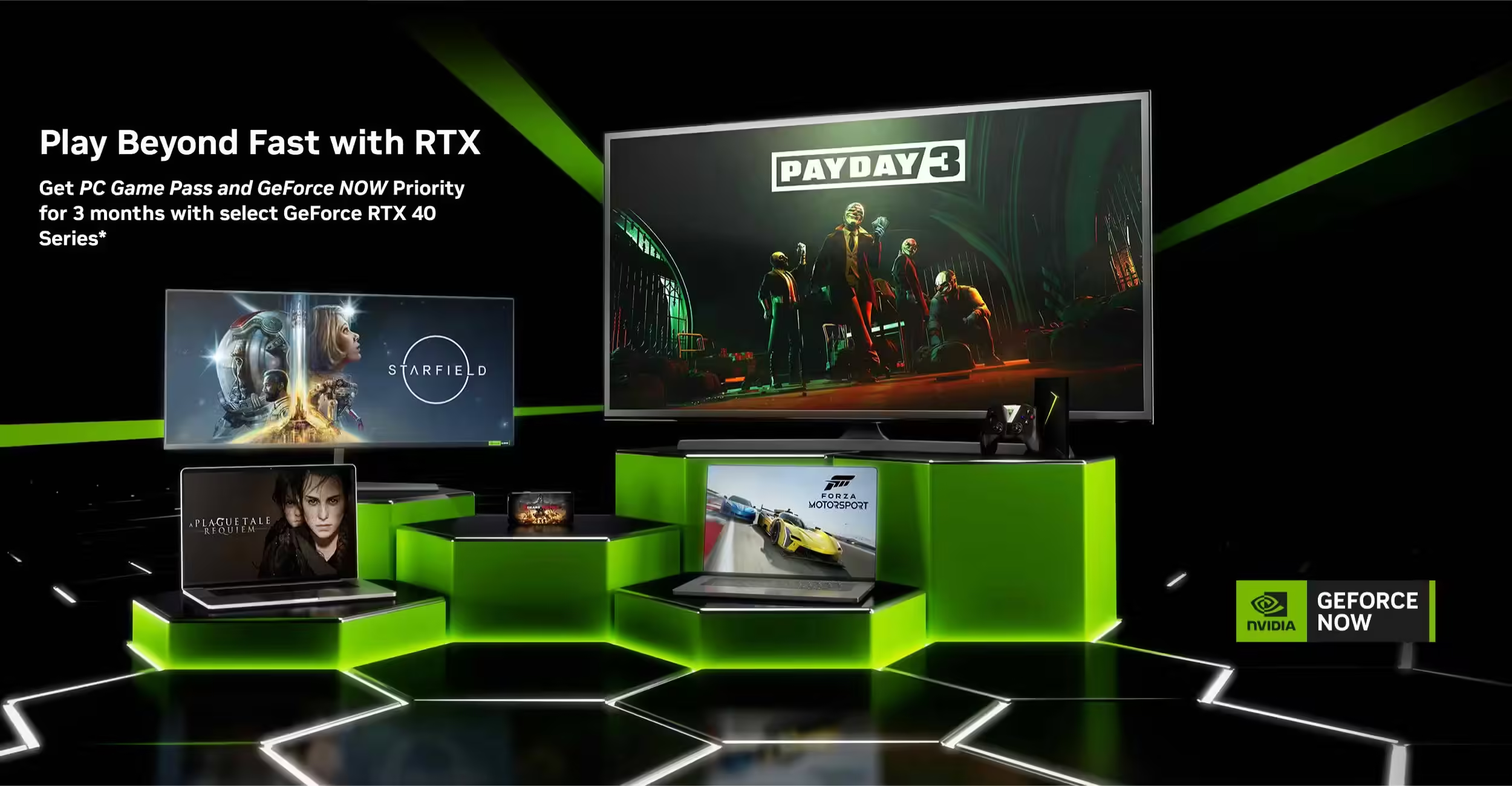
How to Choose: Prioritize 8 GB of VRAM for modern games, then look at local pricing and availability. If you play the latest AAA titles, lean toward newer architectures (Arc or RX 6600). For esports, older cards can still shine. Remember, starting with a best gpu under 200 is just the beginning—you can always upgrade it later in your build. For a glimpse at the upgrade path, explore NVIDIA GeForce RTX 40 Series GPUs: 3 Months Free PC Game Pass & GeForce NOW Priority.

Step-by-Step Assembly Guide (Physical Build)
Building your budget gaming pc build is like adult LEGO. Follow this logical order, as used in guides like HP’s how-to article, and don’t force anything.
Preparation and Safety
Work on a clean, flat surface. Keep screws organized. To prevent static electricity damage, periodically touch an unpainted metal part of your case or plugged-in (but switched off) power supply. This is a standard safety step.
Building on the Motherboard (Outside the Case)
- CPU: Lift the socket lever. Align the gold triangle on the CPU with the one on the socket. Gently place it in—do not slide. Close the lever firmly.
- CPU Cooler: If using the stock cooler, align its mounting posts or screws with the motherboard holes. Tighten screws in a diagonal pattern for even pressure. Plug the cooler’s fan cable into the header labeled CPU_FAN.
- RAM: Use the dual-channel slots (usually A2 and B2—check your manual). Open the latches, align the notch on the RAM stick with the slot, and press down firmly until you hear a click on both ends. Proper RAM installation is key.
- NVMe SSD: Locate the M.2 slot. Insert the SSD at a slight angle, press it flat, and secure it with the tiny screw.
Preparing the Case and PSU
- PSU: Install it in the case’s PSU shroud, fan facing down if the case has a bottom vent. Secure it with the four screws. Route the main 24-pin and 8-pin CPU power cables toward the motherboard area. Cable routing starts here.
- Case: Remove both side panels. Ensure the motherboard standoffs (small metal spacers) are installed in the correct spots for your motherboard size.
Mounting the Motherboard
Gently lower the motherboard into the case, aligning its rear ports with the I/O shield (install the shield first if it’s separate). Screw the motherboard into the standoffs, starting from the center and working outwards. Don’t overtighten.
Installing the GPU (Your Best GPU Under $200)
Locate the top PCIe x16 slot (the longest one). Remove one or two rear PCIe slot covers. Align your best gpu under 200 with the slot and push down firmly until the latch clicks. Secure the GPU’s bracket with screws. Connect the required PCIe power cables from the PSU. Ensure the GPU fans have clear airflow.
Remaining Connections & Cable Management
- Front Panel: Connect the small cables from your case (power switch, reset, LEDs) to the F_PANEL header on the motherboard. Use your manual as a map.
- Fans & Storage: Connect case fans to SYS_FAN headers. For extra SATA drives, connect both a SATA data cable to the motherboard and a SATA power cable from the PSU.
- Final Check: Double-check all power connections: 24-pin motherboard, 8-pin CPU, GPU PCIe, and fans.
- Cable Management: Use zip ties and routing holes to tuck cables away. Good management improves airflow and lowers temperatures, making your fps optimization guide efforts more effective. Neat cables aid cooling.
First Boot, BIOS Settings, and OS Installation
The moment of truth for your budget gaming pc build. Connect your monitor to the GPU (not the motherboard), plus keyboard and mouse. Press the power button. Fans should spin, and lights turn on. A few restarts are normal.
Press Delete or F2 to enter the BIOS/UEFI (the PC’s low-level settings menu). This is where you configure hardware. Do this:
- Confirm your CPU and 16GB RAM are detected.
- Enable XMP (Intel) or DOCP (AMD) so your RAM runs at its full speed (e.g., 3200 MHz).
- Set boot priority to your USB drive for OS installation.
Now, install your OS (like Windows) from a bootable USB drive. Follow the prompts, selecting your NVMe SSD as the installation drive. The installer will guide you. Once done, run Windows Update repeatedly until no critical updates remain. Check that your display is set to 1080p.
FPS Optimization Guide – Squeezing Maximum Performance
Your budget gaming pc build is alive. Now, let’s unlock its full potential with this fps optimization guide. These steps boost performance without sacrificing stability.
1. Install Essential Drivers and Software
- GPU Drivers: Go to Intel, AMD, or NVIDIA’s website and download the latest drivers for your best gpu under 200. Drivers are crucial software that lets your OS and games communicate with the GPU. Always keep these updated.
- Motherboard Drivers: Visit your motherboard manufacturer’s support page for chipset, LAN, and audio drivers.
- Clean House: Disable or uninstall any unnecessary bloatware that might run in the background.
2. Windows and System Tweaks
- Power Plan: Set Windows to “High performance” or “Best performance” mode. This prevents your CPU from slowing down unnecessarily during games.
- Startup Apps: Open Task Manager (Ctrl+Shift+Esc), go to the Startup tab, and disable everything you don’t need launching at boot.
- Game Storage: Install your frequently played games on the NVMe SSD. This drastically reduces load times and prevents stutters. SSDs are a game-changer.
- Background Processes: Before gaming, close resource-heavy apps like Chrome with 50 tabs or streaming software.
3. In-Game Graphics Tuning for 1080p
Use this as a baseline template in most games. Resolution: 1920×1080. Render Scale: 100%.
- Textures: Medium/High (8GB VRAM can handle it).
- Shadows: Low/Medium (big FPS impact).
- Post-Processing (Motion Blur, Film Grain): Off.
- Ambient Occlusion & Volumetric Effects: Low.
- Anti-Aliasing: TAA or use FSR/XeSS/DLSS in “Balanced” mode.
Find the Bottleneck: Use an on-screen display (like MSI Afterburner). If GPU usage is at 99%, lower GPU-heavy settings (shadows, effects). If CPU usage is at 100%, lower CPU-heavy settings (draw distance, crowd density).

4. Advanced but Safe Optimizations
- Upscalers (FSR/XeSS/DLSS): These technologies render the game at a lower resolution and intelligently upscale it, giving a huge FPS boost with minimal quality loss. Enable “Performance” or “Balanced” mode if you need more frames.
- FPS Caps & V-Sync: Capping FPS just below your monitor’s refresh rate (e.g., 58 FPS on a 60Hz screen) can reduce stutters. Disable V-Sync to reduce input lag, but expect screen tearing unless you have a FreeSync/G-Sync monitor.
- Thermal Maintenance: Clean dust from your case filters and fans every few months. High temperatures cause thermal throttling, which lowers FPS to protect components.
Bringing It All Together for a $500 Gaming Setup
You now have everything needed to build and optimize a powerful budget gaming pc build for under $500. Let’s recap the value: a gaming setup under 500 that delivers solid 1080p performance, built on smart part choices (especially your best gpu under 200), careful assembly, and our detailed fps optimization guide.

Revisiting the console vs pc performance debate, the PC’s long-term value is clear. As shown in the reference build, you get similar upfront cost but a platform that grows with you through cheaper games and easy upgrades. This isn’t just a purchase; it’s an investment in a hobby and a tool. Once your build is complete, explore our guide on Top Gaming Accessories for 2023 to complete your setup.
Your Call to Action: Use this parts list as a starting point. Adjust for local sales and availability. Save the assembly and optimization sections as a checklist. Then, build it. You have the blueprint. The skill of building a PC is one you’ll use for years, and with this guide, you’re ready to create a powerful, affordable system with your own hands.
Frequently Asked Questions
Q: Is $500 really enough for a gaming PC in 2024?
A: Yes, absolutely. As demonstrated by builds from reputable sources like GamersNexus, a ~$500 tower can deliver excellent 1080p gaming performance in a wide variety of modern titles by prioritizing the GPU and using smart, value-focused components.
Q: How difficult is it to build a PC with no experience?
A: It’s easier than ever. If you can follow a recipe or assemble furniture, you can build a PC. The process is highly logical, and countless video guides complement written instructions like this one. The key is patience, not forcing components, and following a trusted step-by-step guide.
Q: Can I upgrade this $500 build later?
A: That’s one of the biggest advantages over a console! You can upgrade virtually every part. The most impactful future upgrade will be your GPU. Later, you could add more RAM, a larger SSD, or even a more powerful CPU (within your motherboard’s supported range). This build is a foundation you can improve for years.
Q: Do I need to buy Windows for this build?
A: You can install and use Windows 10 or 11 for free indefinitely, with only a cosmetic watermark and some personalization settings locked. You can often find legitimate Windows licenses at a lower cost later if you choose. This allows you to allocate your full gaming setup under 500 budget to hardware initially.
Q: How does this PC’s performance compare to a PlayStation 5 or Xbox Series S/X?
A: In raw graphical power, a new console may have an edge in optimization for specific games. However, this budget gaming pc build matches or exceeds the experience in many titles at 1080p. The PC’s true win in the console vs pc performance debate is flexibility: cheaper games, mods, multitasking, and the ability to upgrade your GPU in 2-3 years to surpass console performance entirely.