
How to Secure Smart Home Devices: The Ultimate 2025 Guide
Estimated reading time: 18 minutes
Key Takeaways
- Every connected device is a potential entry point; securing your smart home starts with hardening your **protect IoT network**.
- Your data is constantly collected; taking control of **smart home data privacy** is non-negotiable.
- Use a layered security approach: separate networks, strong unique passwords, 2FA, and regular firmware updates.
- Cameras and locks are high-risk; specific steps like end-to-end encryption and physical placement are key to **prevent smart camera hacking**.
- Security is an ongoing habit, not a one-time setup. A simple monthly and quarterly routine keeps you protected.
Table of contents
- How to Secure Smart Home Devices: The Ultimate 2025 Guide
- Key Takeaways
- How to Secure Smart Home Devices – The Big Picture
- Lock Down Your IoT Network – The Foundation
- Smart Home Data Privacy – Protecting Your Digital Footprint
- Wi‑Fi Security for Devices – Hardening Your Home’s Gateway
- Prevent Smart Camera Hacking – Step‑by‑Step Protection
- Smart Locks and Other Critical Devices – Extra Precautions
- Putting It All Together – A Simple Ongoing Security Routine
- Frequently Asked Questions (FAQ)
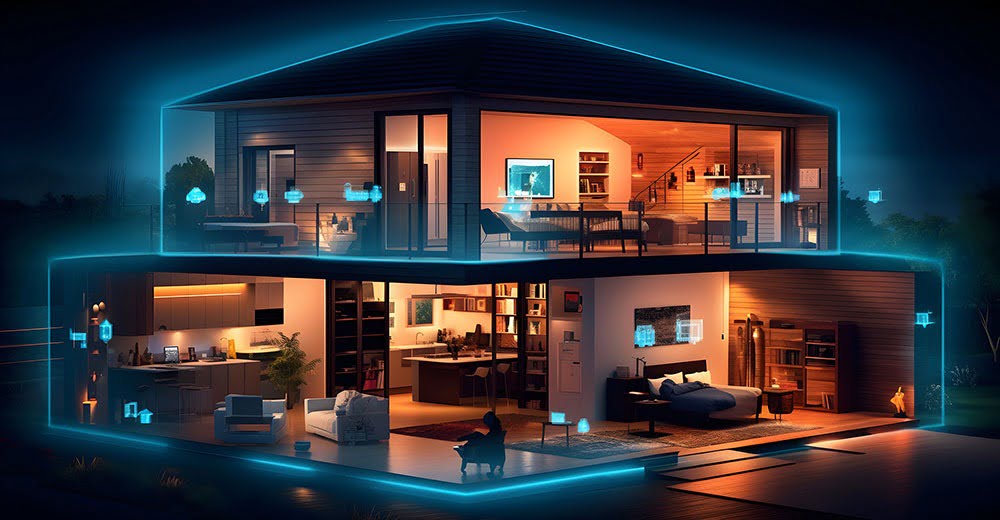
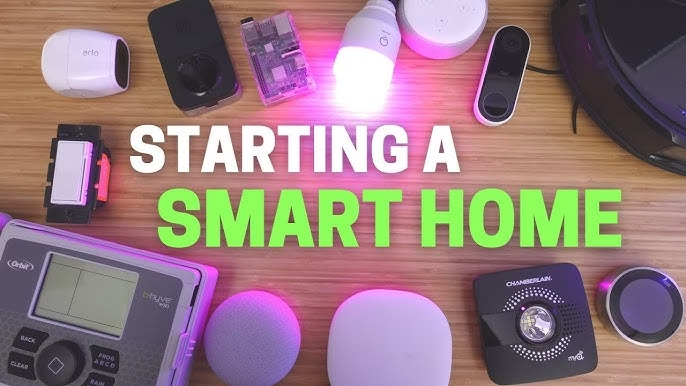
Welcome to the modern home, where lights turn on with a voice command, the thermostat learns your schedule, and a camera on the doorbell lets you see who’s there from anywhere. This convenience is powered by a growing ecosystem of **secure smart home devices**, from speakers and plugs to cameras and locks. If you’re just beginning this journey, our guide on Smart Home: Getting Started with Your Journey is a great place to start.
But this convenience has a shadow: risk. Every one of those internet-connected gadgets is a potential entry point for a hacker. Many ship with weak default passwords, rarely receive security updates, and silently collect data. To **protect IoT network** integrity and **prevent smart camera hacking**, you need a plan.
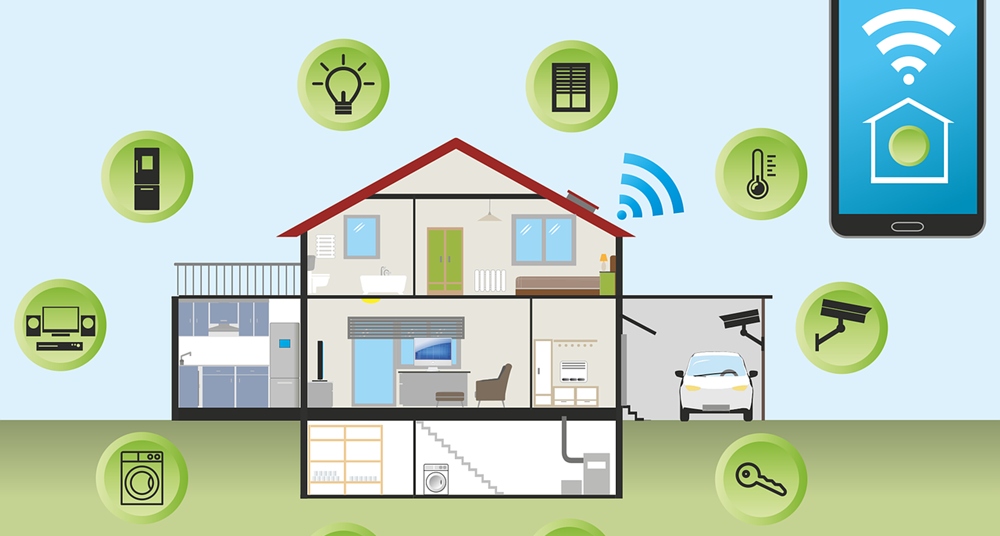
“To secure smart home devices, you must harden your Wi‑Fi network, lock down IoT device settings, protect your data privacy, and apply extra safeguards to high‑risk devices like smart cameras and locks.”
This guide delivers on a simple promise: a step-by-step, non-technical checklist to shield your smart home. We’ll focus on four pillars: network protection (protect IoT network, wifi security for devices), data protection (smart home data privacy), and hardening high-risk devices (prevent smart camera hacking). We’ll explain every term in plain language and tell you exactly which settings to change.
How to Secure Smart Home Devices – The Big Picture
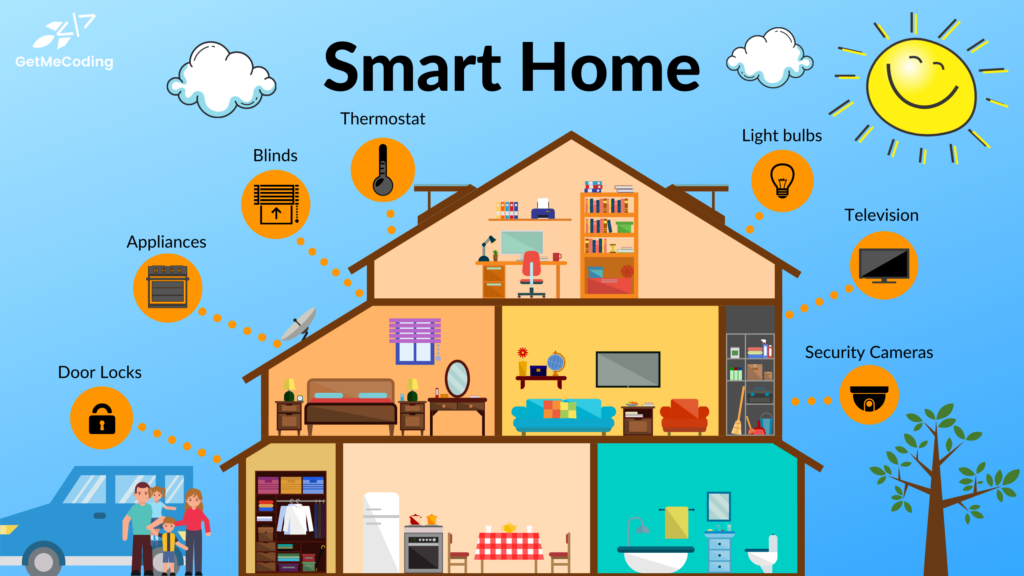
First, let’s define our scope. Smart home devices are any internet-connected or app-controlled gadgets in your home: smart TVs, speakers, cameras, locks, thermostats, plugs, lights, sensors, and even appliances. For a curated list, see our guide on Best Smart Home Devices: Your Ultimate Guide for 2025.
These devices form your IoT network (Internet of Things)—a web of small, always-on devices sharing your home router. Hackers target them because they’re often poorly secured with default passwords and outdated software, and they hold sensitive data: when you’re home, what your rooms look like, and even your voice.
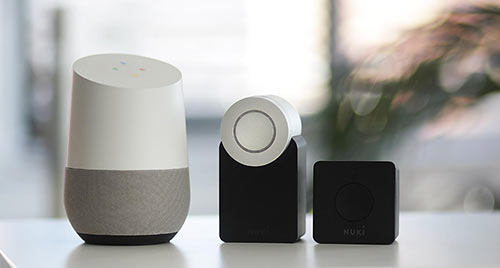
The solution is a layered security approach:
- Layer 1: Network Hardening. Secure your router, Wi-Fi, and segment devices. This is your first line of protect IoT network defense.
- Layer 2: Account & Device Settings. Strong passwords, Two-Factor Authentication (2FA), and firmware updates.
- Layer 3: Data Privacy Controls. Actively managing what data is collected and stored—core to smart home data privacy.
- Layer 4: Extra Protection for Critical Devices. Special measures for cameras and locks to prevent smart camera hacking and unauthorized access.
Adopt this mindset:
- Treat your router like the “front door” of your digital home.
- Treat your cloud accounts (Amazon, Google, camera apps) like master keys.
- Treat cameras and locks as “high-security zones” needing extra scrutiny.
Lock Down Your IoT Network – The Foundation
Your IoT network is the collection of all smart devices connected to your router. If a hacker compromises your router or Wi-Fi, they potentially have a backstage pass to every connected device. This makes protect IoT network efforts the most critical step in your secure smart home devices strategy.
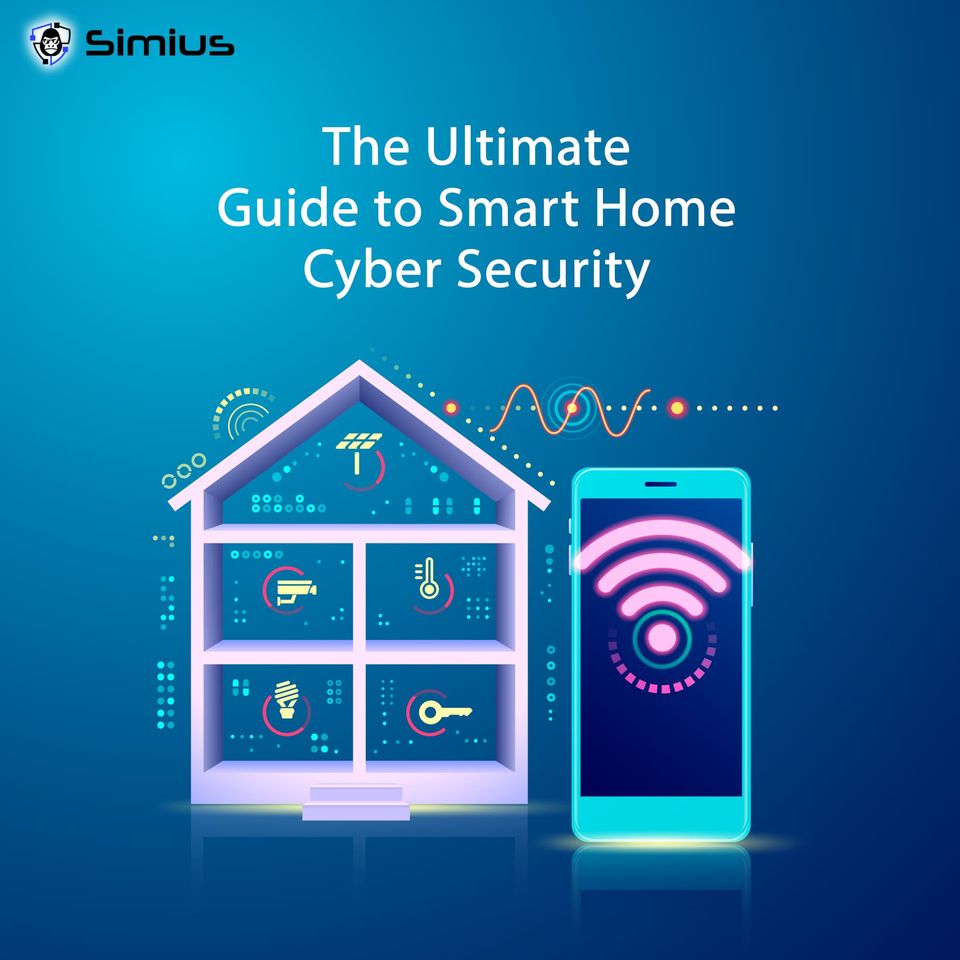
A hacked router can let attackers eavesdrop on your internet traffic, redirect you to fake websites, or access device admin panels. Compromised Wi-Fi means they can connect as if they were sitting in your living room.
Create a Separate Network for IoT Devices
Network segmentation is a fancy term for a simple idea: put your IoT devices on a different Wi-Fi network than your phones and laptops. Use a separate SSID (network name) or your router’s guest network feature.
- Example: Keep “Home-Main” for your computer and phone, and create “Home-IoT” for your camera, bulbs, and plugs.
- Benefit: If a smart bulb gets hacked, the attacker is isolated from your main devices containing sensitive files.
How to do it: Log into your router’s web interface (often at 192.168.0.1 or 192.168.1.1—check your router’s label). Find “Guest Network” or “Additional SSID” settings. Enable it, give it a strong password, and if there’s an option for “Cannot access local network,” check it. For more on this and other foundational tips, the Security.org smart home guide is an excellent resource.
Harden Your Router Admin Account and Firmware
Don’t confuse your Wi-Fi password with your router admin password. The admin credentials are used to change router settings and are often shockingly weak by default (like “admin/password”).
- Change them immediately to a unique, strong password stored in a password manager.
- Disable Remote Administration so the settings can only be changed from inside your home network.
- Enable Automatic Firmware Updates or set a monthly reminder to check for them. Firmware is the router’s internal software; updates patch security holes.
Use Modern Wi‑Fi Security Standards
Your wifi security for devices hinges on using strong encryption. Here’s what you need to know:
- WPA3: The newest, most secure standard. Use it if your router and devices support it.
- WPA2-AES: Still very secure and widely compatible. Use this if WPA3 causes connection issues.
- WEP / WPA-TKIP: Ancient and broken. Never use these.
Action: In your router’s Wi-Fi settings, select “WPA3-Personal” or “WPA2-Personal” (AES). Use a long, random password (16+ characters). Yes, reconnecting all devices is a hassle, but it’s a one-time task for massive security gain.
Consider Local‑First Protocols (Zigbee/Z‑Wave)
Devices using Zigbee or Z‑Wave communicate through a local hub (like a SmartThings hub or Philips Hue bridge) instead of directly over Wi-Fi to the cloud. This reduces their exposure to internet-based attacks. When buying new devices like bulbs or sensors, consider ecosystems that use these protocols. The Security.org guide to ecosystems can help you understand your options.
Network Hardening Checklist
- ✅ Create a separate SSID/guest network for IoT devices.
- ✅ Set a strong, unique Wi-Fi password (16+ random characters).
- ✅ Enable WPA3 or WPA2-AES encryption only.
- ✅ Change default router admin username and password.
- ✅ Disable remote administration.
- ✅ Enable automatic firmware updates or check monthly.
Smart Home Data Privacy – Protecting Your Digital Footprint
Smart home data privacy is the practice of controlling what information your devices collect, how it’s stored, who it’s shared with, and how it’s protected. Your devices are constantly gathering data:
- Usage Logs: When doors open, lights turn on, or motion is detected—revealing when you’re home or away.
- Audio & Video: Voice recordings from assistants and video clips from cameras.
- Behavioral Patterns: Your sleep schedule, thermostat routines, and geofencing location data.
- Account Data: Email, phone numbers, and sometimes payment info linked to apps.
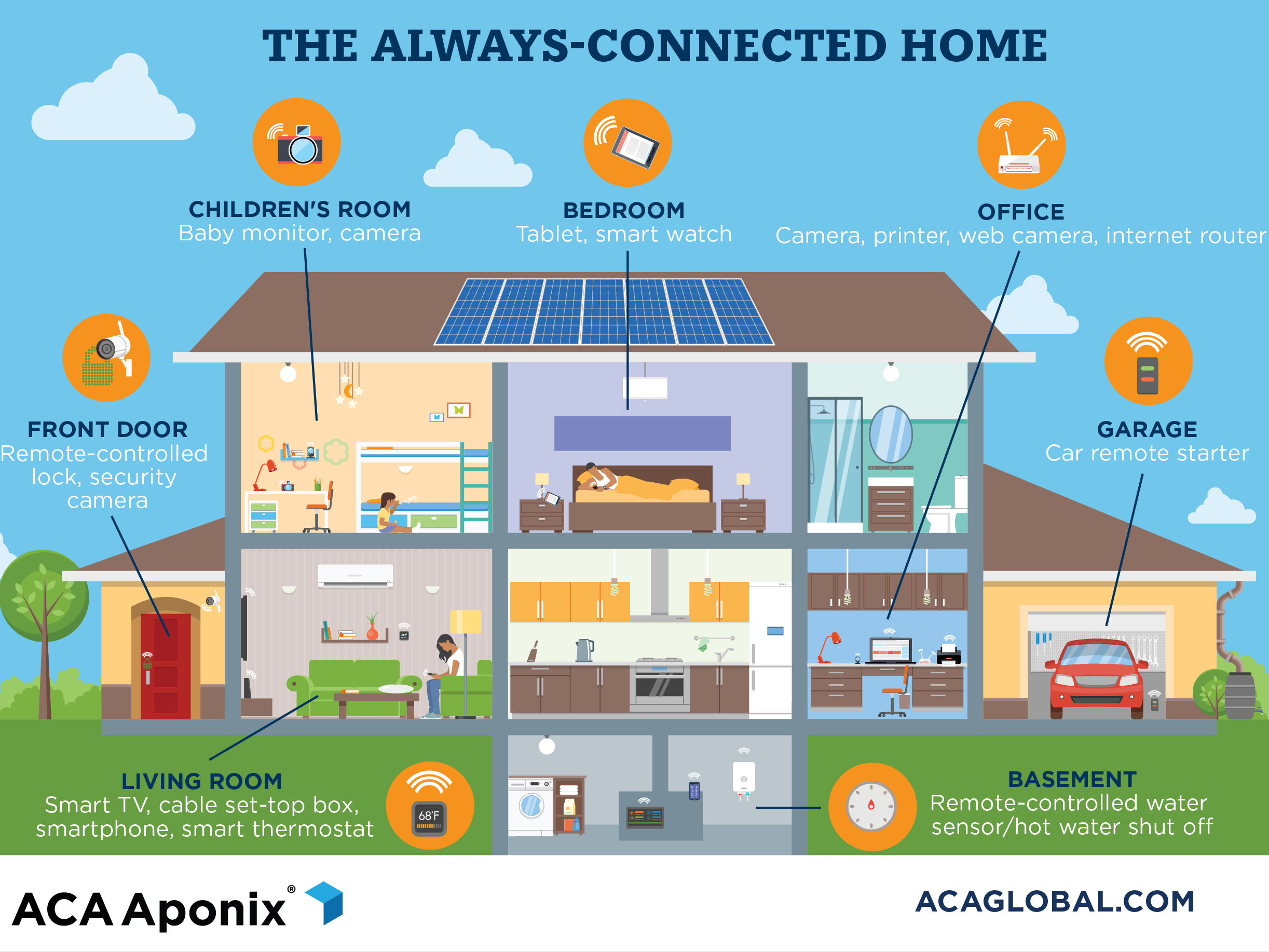
Managing Data on Major Platforms
Take control of your data on the big three platforms, as outlined in the Security.org smart home guides:
- Alexa: Go to Alexa app > Settings > Alexa Privacy. Review and delete voice history, and turn off “Use voice recordings to improve Amazon services.”
- Google Assistant: Visit your Google Account > Data & Privacy > “Web & App Activity” and “Voice & Audio Activity.” Pause saving or set auto-delete.
- Apple Home/Siri: Check Settings > Siri & Search > Siri & Dictation History to manage data sharing preferences.
Control App‑Level Data Sharing and Cloud Backups
Drill into each device’s companion app:
- Look for Privacy, Data, or Permissions sections.
- Turn off unnecessary cloud backups, especially for indoor cameras, if local storage (like an SD card) is available.
- Opt out of personalized ads and data sharing programs.
- Limit app permissions on your phone (e.g., set location access to “While Using the App”).
Strengthen Account Security (Passwords and 2FA)
Hackers often target cloud accounts, not the devices themselves. If they get into your camera account, they can watch your feeds.
- Use a password manager to create and store unique, strong passwords for your router, Wi-Fi, and every smart home platform and vendor account.
- Enable Two-Factor Authentication (2FA) everywhere it’s offered. This adds a second step (like a code from an app) to logins. Prioritize 2FA for camera, lock, and security system accounts.
Questions to Ask Before Buying Any Smart Device
Be a savvy shopper. Before you buy, check the vendor’s website for answers to these questions, guided by principles from Security.org’s buying guidance:
- What data does it collect, and can I opt out of sharing?
- Is data encrypted end-to-end (in transit and at rest)?
- Does the vendor provide regular security updates and a clear security policy?
- Is 2FA available for the account?
- Is there a local storage option (SD card, NAS) in addition to or instead of cloud?
Wi‑Fi Security for Devices – Hardening Your Home’s Gateway
Since Wi-Fi is the main gateway for most devices, its security is paramount for your protect IoT network and wifi security for devices goals.

Wi‑Fi Security “Do” List
- Do use a long, random Wi-Fi password (generate it with a password manager).
- Do keep your router firmware and its mobile app updated.
- Do ensure your router’s built-in firewall is enabled (it usually is by default).
- Do restrict or turn off UPnP (Universal Plug and Play) in router settings, as it can automatically open risky network ports.
- Do regularly review the list of connected devices in your router’s app and remove any you don’t recognize.
Wi‑Fi Security “Don’t” List
- Don’t reuse your Wi-Fi password for any online account.
- Don’t leave WPS (Wi-Fi Protected Setup) enabled. Its PIN method has known vulnerabilities. Disable it in your router settings.
- Don’t use a default SSID that reveals your router brand/model (e.g., “NETGEAR-5G”). Choose a neutral name.
SSID Hiding – What It Is and What It’s Not
Hiding your network’s SSID (so it doesn’t broadcast its name) is “security through obscurity.” While it hides your network from casual viewers, determined attackers can still find it with simple tools. It can also cause connection headaches for your own devices. Prioritize strong encryption and a strong password over hiding your SSID.
Prevent Smart Camera Hacking – Step‑by‑Step Protection
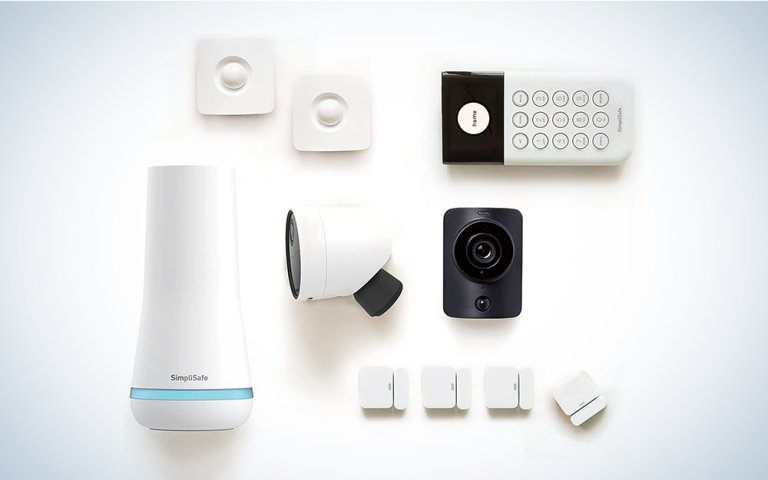
Cameras are a special case. They capture the most sensitive visual and audio data, making them prime targets. Taking specific steps to prevent smart camera hacking is non-negotiable for smart home data privacy.
What to Look for Before Buying a Smart Camera
Start with a secure product. Prefer vendors that offer, as discussed in the Security.org smart home guide:
- End-to-end encryption (E2EE): Ensures only you and your devices can view the video stream.
- Secure default settings that force you to set a password during setup.
- A transparent update policy with a history of regular firmware releases.
- Local storage options (SD card, NVR) to reduce reliance on the cloud.
Do a quick web search for “[brand name] security breach” before purchasing.
Secure Setup: First Steps After Installing a Camera
- Immediately change any default username and password. Never use “admin/admin”.
- Enable 2FA on the camera’s associated account (e.g., Ring, Google, Nest).
- Turn on encryption or “secure streaming” options in the camera’s settings (look for “HTTPS only”).
- Place the camera on your separate IoT network for segmentation, a key part of your protect IoT network strategy.
Restrict Remote Access and Sharing
- If you rarely check cameras remotely, consider disabling remote access entirely, limiting viewing to your home network.
- Share camera access sparingly. Use individual accounts for household members instead of a shared password.
- Avoid permanent public sharing links for video clips. If you must share, use links that expire quickly.
Physical Placement and Privacy Practices
Good placement limits harm even if a camera is compromised:
- Avoid pointing indoor cameras at highly private areas (bedrooms, bathrooms). Use them in common spaces.
- Use physical privacy covers or shutters (many cameras have them built-in) and close them when the camera isn’t needed.
- Focus outdoor cameras on entry points and perimeter (doors, driveways, yards), not into neighbors’ windows.
What to Do If You Suspect Your Camera Is Hacked
Warning signs: Unusual movements, status lights turning on unexpectedly, unknown logins in your account.
Immediate response:
- Change the camera account password and verify 2FA is on.
- Log out all active sessions from the account settings.
- Update the camera’s firmware immediately.
- Check your router’s device list for unknown connections. If found, change your Wi-Fi password.
- As a last resort, factory reset the camera and set it up again on your hardened network.
Smart Locks and Other Critical Devices – Extra Precautions
Devices that control physical access (locks, garage openers) or safety (alarm panels, thermostats that indicate occupancy) demand extra care. For a broader look at securing these systems, Security.org’s smart home systems overview provides useful context.

Hardening Smart Locks and Entry‑Related Devices
- Network: Ensure they are on your secured IoT network, not an open guest network.
- Access Controls: Require a PIN, fingerprint, or strong phone lock (Face ID, strong passcode) on the phone that controls the lock.
- Alerts & Logs: Enable notifications for every lock/unlock event. Regularly review access logs for unknown entries.
- Backup: Always have a physical key or manual override available in case of device failure.
Alarms, Sensors, and Other Systems
For alarm panels and security hubs: use strong admin passwords, enable 2FA on connected cloud services, and keep firmware updated. For safety sensors (smoke, CO, water leak), the priority is ensuring they are functional and their alerts are not disabled, but also ensure their companion apps are secured with good account hygiene.
Putting It All Together – A Simple Ongoing Security Routine
Security is a habit. Here’s a simple schedule to maintain your secure smart home devices, protect IoT network, and uphold smart home data privacy.
Monthly:
- Check for firmware updates on your router, smart home hubs, cameras, and smart locks.
- Review your router’s connected device list and remove unknowns.
Quarterly:
- Review privacy settings in major apps (Alexa, Google, camera apps).
- Delete old recordings and logs you no longer need (voice history, camera archives).
- Audit shared access; remove users or devices that no longer need it.
Annually:
- Change your Wi-Fi password and reconnect only active devices.
- Evaluate older devices: replace any that no longer receive security updates.
Your Final Checklist:
- ✅ Network hardened with separate IoT SSID, WPA3/WPA2-AES, no WPS.
- ✅ Accounts protected with unique passwords and 2FA enabled.
- ✅ Data limited via privacy settings and regular deletion.
- ✅ Cameras and locks secured with encryption, 2FA, and careful placement.
Frequently Asked Questions (FAQ)
Can smart home devices be hacked through Wi‑Fi?
Yes, absolutely. If your Wi‑Fi is unsecured (using a weak password, outdated WEP encryption, or with WPS enabled), an attacker within range can attempt to break into your network. Once inside, they can probe connected devices. This is why wifi security for devices—using WPA3/WPA2-AES, a strong password, disabling WPS, and network segmentation—is the critical first step to protect IoT network and secure smart home devices.
Are smart cameras safe to use indoors?
They can be safe if configured with maximum security settings: a strong unique password, 2FA enabled, encrypted streaming turned on, and regular firmware updates. For privacy, use physical covers and avoid placing them in bedrooms or bathrooms. Following these steps is key to prevent smart camera hacking and uphold smart home data privacy.
Is it safe to connect smart locks to Wi‑Fi?
It can be safe if you layer your defenses. Connect the lock to a secured IoT network (segmented from your main devices), harden its associated account with 2FA, and enable alerts for all lock events. When managed correctly, the convenience and activity logging of a connected lock can actually improve your physical security. It hinges on your broader efforts to secure smart home devices and protect IoT network.
By following this layered approach—hardening your network, locking down accounts, controlling your data, and securing cameras and locks—you dramatically reduce risk while keeping your home’s convenience. Remember, security isn’t a one-time setup; it’s an ongoing habit of small, regular actions like updates and password checks.
Start today: Pick one area from this guide—your network, your data settings, or your cameras—and implement the changes. Schedule your monthly check-in. When you systematically secure smart home devices and maintain them, you transform your smart home from an easy target into a resilient, privacy-respecting ecosystem. To understand the broader trends driving these devices, explore our analysis on The Rise of Unstoppable AI-Powered Smart Homes. For more foundational tips, our guide on How to Protect Your Smart Home from Cyber Threats offers complementary strategies.