
Unlock Your Phone’s Potential: iOS 18 Hidden Features & Android 15 Tips and Tricks for Everyday Power Users
Estimated reading time: 12 minutes
Key Takeaways
- Discover the iOS 18 hidden features that turn your iPhone into a more personal and powerful tool, from deeply customizable Control Centers to smarter privacy controls and clever iPhone shortcut hacks.
- Master essential Android 15 tips and tricks for taming notifications, leveraging the Privacy Dashboard, and using built-in AI helpers to work smarter.
- Explore the new system update tools common to both platforms, like advanced search, accessibility suites, and battery diagnostics, that redefine daily phone management.
- Understand how satellite connectivity, on-device AI, and deeper customization collectively represent the best phone features 2026 has to offer, making your device more resilient and helpful.
- Get actionable, step-by-step guides to implement these features immediately, boosting your efficiency, privacy, and overall experience.
Table of contents
- Unlock Your Phone’s Potential: iOS 18 Hidden Features & Android 15 Tips and Tricks for Everyday Power Users
- Key Takeaways
- Opening Hook: The Power Beneath the Surface
- Section 1: iOS 18’s Hidden Gems You’ll Actually Use
- Section 2: Mastering Android 15’s New Capabilities
- Section 3: Cross‑Platform “Invisible” System Tools You Shouldn’t Ignore
- Section 4: The Best Phone Features 2026 – iOS 18 vs Android 15 Head‑to‑Head
- Your Next Steps: Master Your Phone Today
- Frequently Asked Questions
Opening Hook: The Power Beneath the Surface
If you’ve updated your iPhone and want to uncover the iOS 18 hidden features that actually save time, or you’re navigating Android 15 looking for real workflow boosts, you’re in the right place. You’ve seen the headlines about big, flashy changes, but the true magic—the features that make your phone feel new again—often lies hidden in menus, waiting to be discovered.

This guide isn’t just another feature list. It’s a practical, step-by-step playbook designed for power users who want to squeeze every drop of potential from their devices. We’ll dive deep into the iOS 18 hidden features and essential Android 15 tips and tricks that boost speed, fortify privacy, and add everyday convenience. You’ll learn clever iPhone shortcut hacks, how to leverage new system update tools, and why these updates contain some of the best phone features 2026 will build upon.
For a deep dive into Apple’s AI vision for iOS 18, check out our comprehensive preview of Apple Intelligence. Also, before diving in, ensure your device is compatible by reviewing the list of iOS 18 supported devices.
Section 1: iOS 18’s Hidden Gems You’ll Actually Use
iOS 18 is packed with subtle, powerful tweaks that go far beyond home screen aesthetics. Let’s explore the iOS 18 hidden features that deliver tangible benefits, integrated with practical iPhone shortcut hacks to automate your life.
1.1 Super‑charged Control Center customization
Gone are the days of a static Control Center. iOS 18 introduces a new level of customization, letting you tailor quick access to your most-used tools. This deeper customization is a prime example of the best phone features 2026 trend: turning your device into a personal command center.

- Why it matters: Faster access to toggles and Shortcuts means fewer swipes and taps, saving you precious seconds countless times a day.
- Basic Setup: Open Settings → Control Center. Tap Add a Control to add system tiles like Flashlight, Low Power Mode, Screen Recording, Notes, or Voice Memos. Use the three-line handle next to each control to reorder them for your workflow.
- Hidden Detail: Long-press the new Flashlight control. You’ll not only find a brightness slider but also a new beam width adjustment (narrow vs. wide)—a small but useful iOS 18 hidden feature.
iPhone Shortcut Hack: Create a “Travel Mode” Tile
- Open the Shortcuts app and tap the + to create a new shortcut.
- Add these actions:
- Set Wi‑Fi → Off.
- Set Low Power Mode → On.
- Set Focus → Travel (create this Focus first if needed).
- Name it “Travel Mode.”
- Now, add it to Control Center: Settings → Control Center → Add a Control → Shortcuts → Travel Mode.
With one swipe and tap, your phone switches to a travel-optimized profile. Adapt this for “Work Mode” or “Gym Mode” for instant context switching.

1.2 Messages tricks most people miss
iOS 18 brings a significant, behind-the-scenes upgrade to Messages. It’s not just about new emoji reactions.
- Scheduled Messages: Perfect for birthdays or professional follow-ups. In a conversation, tap the + button, choose More → Send Later, pick your time, and confirm. The message will send automatically.
- Full-Resolution Images: Messages can now send images up to 100MB in full quality. Great for sharing sharp photos, mockups, or documents without quality loss.
- Rich Text Formatting & Effects: Select text in a message bubble to apply bold, italics, underline, or strikethrough. Use animated Text Effects like Explode or Ripple for emphasis.
- Messages via Satellite: On supported iPhones, you can send Messages via satellite when off-grid. The system guides you to point your phone at the sky—a lifesaver for hiking or emergencies and a hallmark of the best phone features 2026.
Shortcut Idea: “Smart Follow-Up”
Create a shortcut that asks what you want to follow up on, waits for a set period (e.g., 2 hours), and then sends the message. You can even automate it to trigger when you leave a location, ensuring you never forget a check-in—a brilliant iPhone shortcut hack.
1.3 Privacy upgrades: locked & hidden apps, smarter permissions
iOS 18 puts unprecedented control in your hands. Now, privacy is a built-in system update tool, not an afterthought.
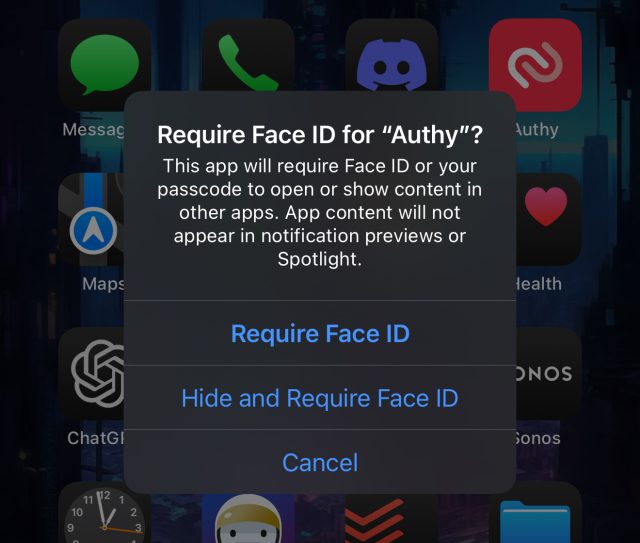
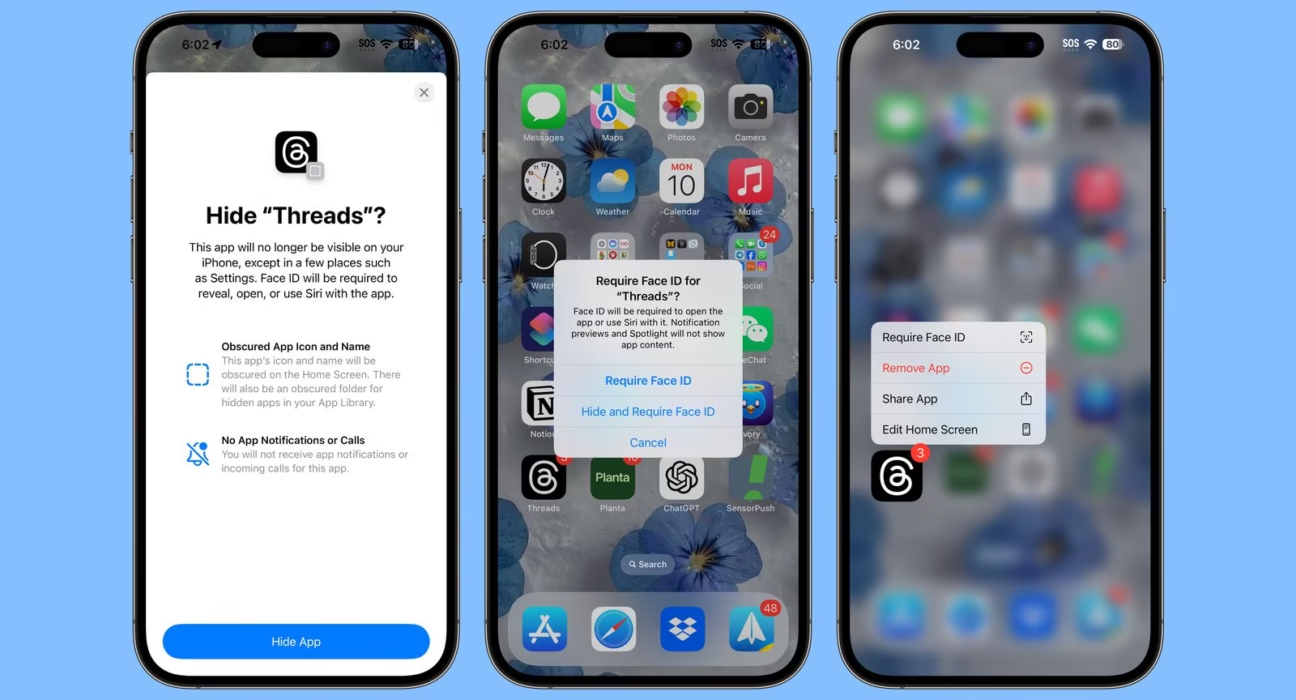
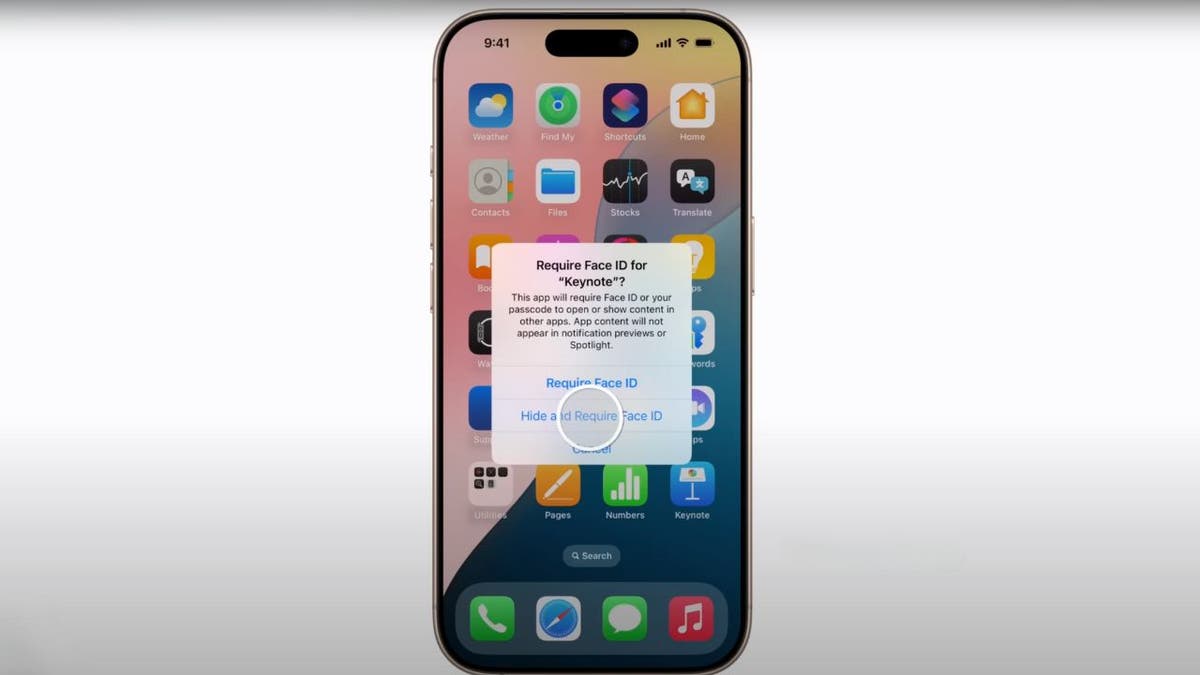
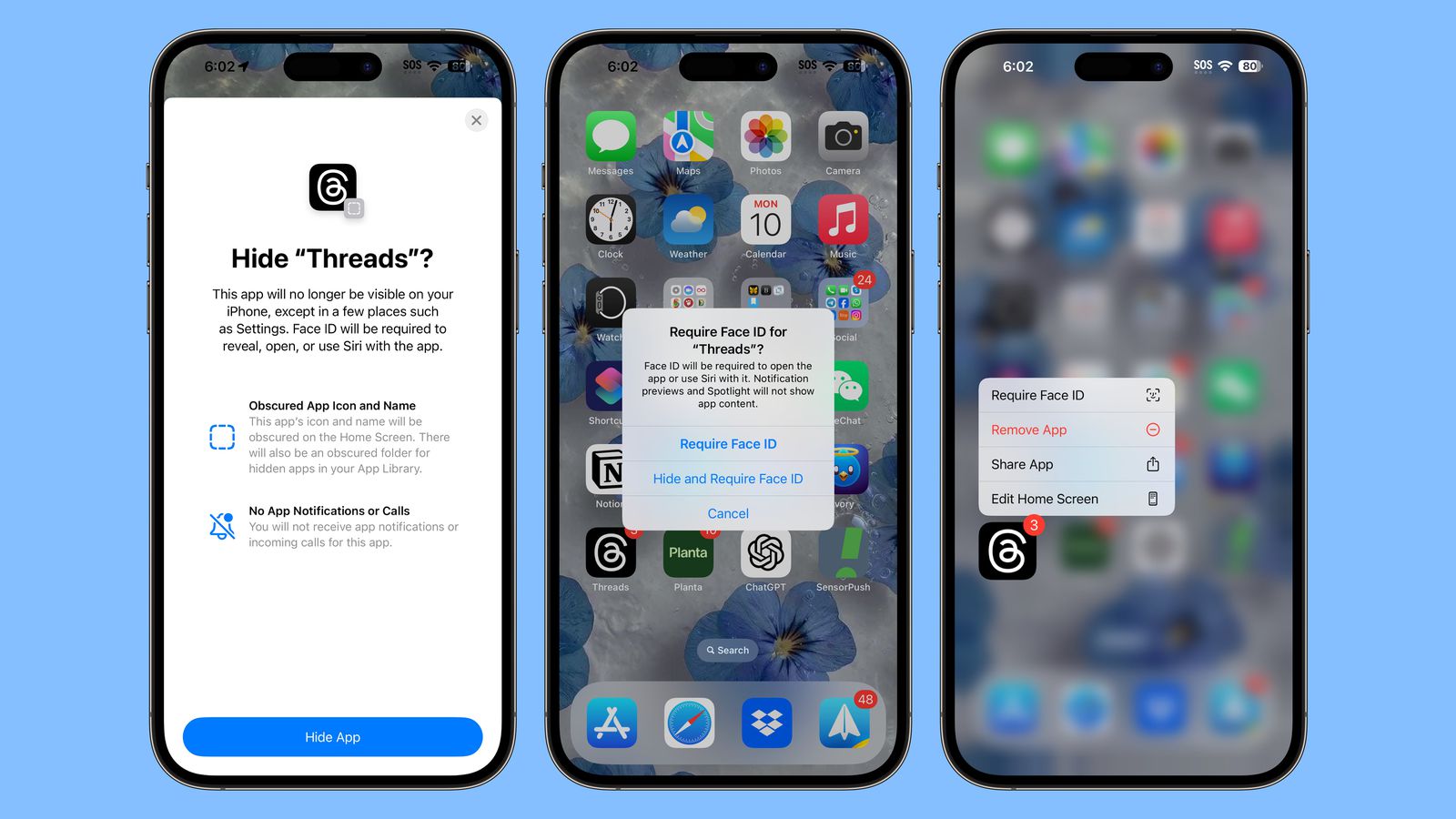
- App Locking: Long-press any app icon and choose Require Face ID. Alternatively, manage everything in Settings → Privacy & Security → Locked & Hidden Apps.
- Hidden Apps Folder: Move sensitive apps here. They require authentication to open and are excluded from search and notifications, making them invisible to prying eyes. Perfect for banking, health, or private messaging apps.
- Contact-Sharing Control: When an app asks for contacts, you can now choose Allow Selected Contacts instead of your entire address book. Share only what’s necessary.
Shortcut Hack: “Secure Mode” Profile
Create a shortcut that enables a custom “Privacy” Focus (hiding lock-screen previews), switches to Dark Mode, and opens your password manager. Then, assign this shortcut to a Back Tap gesture (Settings → Accessibility → Touch → Back Tap). One double-tap on the back of your phone instantly hardens your privacy.
1.4 Everyday AI & utility features (Photos, Notes, calls, accessibility)
This is where iOS 18 hidden features blend into practical magic, offering Apple Intelligence-style utilities today.
- Photos Clean Up: The new Clean Up tool lets you paint over unwanted objects (photo bombers, clutter) and seamlessly removes them. Also, use Copy Edits & Paste Edits to apply the same adjustments across similar photos instantly.
- Call Recording & AI Summaries: During a call (where legally available), tap Record. Afterward, iOS provides a transcription and a concise AI-generated summary of key points. The Notes app offers similar features for in-person recordings.
- Accessibility as Power Features:
- Eye Tracking: Navigate your iPhone using only your gaze (Settings → Accessibility → Eye Tracking).
- Vehicle Motion Cues: Adds subtle animated dots to reduce motion sickness while reading in a car—a clever new system update tool.
- Music Haptics: Feel the beat through synchronized Taptic Engine vibrations, great for enjoying music or aiding those with hearing loss.
The AI and utility features in iOS 18 are part of a broader push into on-device intelligence. Learn more in our comprehensive preview of Apple Intelligence.
Section 2: Mastering Android 15’s New Capabilities
Android 15 continues Google’s focus on refinement, intelligence, and user control. These Android 15 tips and tricks will help you master notifications, privacy, and the built-in AI that makes your phone smarter.
2.1 Smarter notifications & Focus‑style controls
Take back control of your attention. Android 15 lets you filter notifications at a granular level.

- Per-App Notification Categories: Long-press any notification → tap Settings. Here, you can toggle specific categories like “Promotions” or “Social Updates” on or off for that app. Silence the noise, keep the signal.
- Priority Mode / Do Not Disturb: Configure in Settings → Notifications. Set schedules for work or sleep, allow only specific contacts or apps, and even use location-based rules to activate automatically.
- Snoozing: Slightly swipe a notification and tap Snooze to have it reappear in 15 minutes, 1 hour, or custom times. Prevents important alerts from getting lost in the shuffle.
2.2 Privacy Dashboard & permission intelligence
Transparency is power. The Privacy Dashboard is a central timeline of which apps used sensitive permissions and when.
- How to Use: Go to Settings → Privacy → Privacy Dashboard. Review access history for location, camera, and microphone.
- Take Action: Tap any app to change its permission to Allow only while using the app (the recommended default) or Deny.
- Quick Toggles: Add the camera and microphone tiles to your Quick Settings. One tap disables system-wide access—a vital new system update tool for confidential moments.
2.3 Satellite connectivity & off‑grid safety
Like iOS, Android 15 brings satellite connectivity to supported devices, ensuring you’re never completely cut off.
- Setup: Navigate to Settings → Network & Internet → Satellite (or similar). Enable features and pre-configure emergency contacts and medical info.
- Use Cases: Essential for hiking, rural travel, or emergencies. This move towards constant connectivity is a key part of the best phone features 2026 landscape.
2.4 System‑level AI helpers
AI in Android 15 is less about buzzwords and more about helpful nudges.
- Smart Reply & Actions: In notifications, look for suggested replies (“On my way”) or smart actions (“Add to calendar,” “Navigate”).
- AI‑Assisted Autofill: In forms, Android intelligently identifies fields and suggests accurate autofill entries. Review your data in Settings → System → Languages & input → Autofill.
- AI Wallpapers & Theming: Long-press the Home Screen, choose Wallpaper & style, and explore AI-generated themes that personalize your device’s look effortlessly.
- Central AI Settings: Visit Settings → System → AI / Assistant to manage features like call screening, spam detection, and notification summaries.
Section 3: Cross‑Platform “Invisible” System Tools You Shouldn’t Ignore
Some of the most powerful new system update tools aren’t platform-specific. They’re the built-in utilities on both iOS 18 and Android 15 that change how you manage your device daily.
3.1 Unified, smarter search on both platforms
Search is becoming your phone’s universal command bar.

- iOS 18 Spotlight & Safari Highlights: Swipe down on the Home Screen to search apps, contacts, messages, and even system settings. In Safari, look for Highlights that surface key info like business hours or article summaries.
- Android 15 Global Search: From your launcher, search across apps, files, settings, and the web. Some OEMs extend this to in-app content.
- Why it’s a “Best Feature”: It dramatically cuts down on menu diving, making your phone feel faster and more intuitive.
For a broader look at the latest features across both platforms, see our comprehensive guide to the latest iOS and Android updates.
3.2 Accessibility suites as power‑user toolkits
Don’t skip the Accessibility settings. They’re packed with new system update tools that can boost anyone’s productivity.
- iOS 18: Revisit Eye Tracking for hands-free control, Music Haptics as a tactile metronome, or Vehicle Motion Cues for reading in the car.
- Android 15: Explore Voice Access for voice control, Live Caption for instant captions on any media, and customizable gesture shortcuts.
- The Takeaway: These features are designed for everyone. Try one and you might find a new favorite way to interact with your phone.
3.3 Battery health & built‑in diagnostics
Extending your phone’s lifespan is a core tenet of the best phone features 2026. Both systems now offer robust built-in tools.

- iOS: Go to Settings → Battery → Battery Health to see maximum capacity and enable Optimized Battery Charging.
- Android: Navigate to Settings → Battery to view health estimates, top battery-draining apps, and use “Device care” tools for cleanup.
- Pro Tip: Use scheduled Battery Saver/Low Power Mode during predictable long days to stretch your charge.
For a recent example of a system update that improved battery and performance management, check out the details of the iOS 18.3.2 update.
3.4 System‑wide translation & live language tools
Break down language barriers directly from your phone.
- iOS 18: Use the Translate option when selecting text in Safari, apps, or even within photos. Download languages for offline use.
- Android 15 Live Translate: Translate text in chats, voice calls, or through your camera view in real-time. Enable in Settings → System → Languages & input.
- Real-World Use: Perfect for travel, international collaboration, or enjoying global content.
Section 4: The Best Phone Features 2026 – iOS 18 vs Android 15 Head‑to‑Head
So, what defines the best phone features 2026? It’s a combination of privacy, intelligence, resilience, and deep customization. Let’s see how our two leading platforms stack up.
4.1 Comparison at a Glance
- Lock Screen & Home Customization:
- iOS 18: Icon size/color changes, free-form layout, customizable Control Center tiles, and lock-screen shortcuts. (Sources: TechCrunch, MacRumors)
- Android 15: Deep theming, icon packs, flexible widgets, and support for custom launchers.
- Privacy & App Control:
- iOS 18: Locked & hidden apps, per-contact data sharing, heavy on-device processing. (Source: Apple)
- Android 15: Privacy Dashboard timeline, permission timing controls (Allow only while using), sandboxed AI features.
- AI Assistance:
- iOS 18: Photos Clean Up, call/note summaries, transcriptions, early Apple Intelligence features. (Sources: Apple, TechCrunch)
- Android 15: Smart replies & actions, AI wallpapers, system-level notification summaries.
- Satellite Messaging:
- iOS 18: Messages via satellite for off-grid texting on supported devices. (Sources: TechCrunch, Apple)
- Android 15: Satellite SOS and basic messaging on capable hardware.
- Accessibility as Mainstream Features:
- iOS 18: Eye Tracking, Music Haptics, Vehicle Motion Cues. (Sources: TechCrunch, Apple)
- Android 15: Voice Access, Live Caption, extensive gesture controls.
4.2 What “best” really means for 2026 smartphones
The best phone features 2026 aren’t about one killer app. They’re about a cohesive experience built on pillars:
- Privacy by Default: Both platforms now force apps to ask for less and give you more control—whether it’s locking apps on iOS or reviewing a timeline on Android.
- Everyday AI, Not Gimmicks: Useful tools like call summaries and photo clean-up that solve real problems quietly in the background.
- Resilience & Longevity: Satellite connectivity for safety and better battery diagnostics to keep your device healthy for years.
- Deep Behavior Customization: From Focus modes and automations to system-wide search, your phone adapts to your life, not the other way around.
Your task is to decide which pillars matter most to you and use the iOS 18 hidden features and Android 15 tips and tricks outlined here to build your perfect setup.
Your Next Steps: Master Your Phone Today
You now have the map to the most valuable iOS 18 hidden features and practical Android 15 tips and tricks. You’ve seen how new system update tools for search, accessibility, and battery care make a real difference, and you understand what makes the best phone features 2026 tick.
Here’s your action plan:
- iPhone Users: Start by customizing your Control Center. Then, create one new Shortcut tile using our iPhone shortcut hacks—maybe “Travel Mode” or “Secure Mode.”
- Android Users: Tame your notifications first. Clean up a few app notification categories, then visit the Privacy Dashboard to review and adjust one permission.
Pick one tip from each major section to try today. Bookmark this guide and revisit it after future updates—treat it as a living checklist for your device’s potential.
To stay on top of the latest improvements, be sure to check out what’s new in the iOS 18.5 update.
Frequently Asked Questions
Are these iOS 18 and Android 15 features available on all devices?
No. Some features, like satellite connectivity, certain AI capabilities, and even the update itself, require specific hardware. Always check official compatibility lists for iOS 18 and your Android device manufacturer’s support page for Android 15 availability.
Do I need technical skills to use these iPhone shortcut hacks?
Not at all. The Shortcuts app is designed to be visual and user-friendly. Start with the simple “Travel Mode” example in this guide—it’s just dragging and dropping blocks of actions. Once you see how it works, you’ll be creating your own in no time.
What if a feature mentioned here, like call recording, isn’t showing up on my phone?
Some features are region-locked due to local laws (like call recording) or are rolled out in stages by the platform developers (Apple/Google) or your carrier. Ensure your device is fully updated to the latest version of iOS 18.x or Android 15.x. If it’s still missing, it may not be available in your region yet.
Will using these new system update tools, like battery diagnostics, void my warranty?
Absolutely not. These are official, built-in tools provided by Apple and Google within the settings menu. Using them to monitor your battery health or clear cache is encouraged and will not affect your warranty. They are there to help you maintain your device.
Which platform has better privacy features in 2026, iOS 18 or Android 15?
Both have taken massive strides. iOS 18 excels with very user-friendly, concrete controls like locking individual apps and the Hidden Apps folder. Android 15 offers unparalleled transparency with its Privacy Dashboard, showing you a detailed history of access. The “better” choice depends on whether you prefer proactive, app-level locking (iOS) or reactive, timeline-based review and control (Android).