
Samsung AI Camera Filters: The Intelligent Way to Perfect Photos
Estimated reading time: 8 minutes
Key Takeaways
- Samsung AI camera filters are context-aware, personalized tools powered by Galaxy AI that go beyond basic presets.
- Scene optimization AI automatically detects scenes like portraits or food and adjusts settings in real-time for vibrant results.
- Photo enhancement tools such as Photo Assist and Generative Edit allow for advanced post-capture edits, including object removal and remastering.
- These features are built on new imaging tech like NPUs and AI ISPs, enabling fast processing and high-quality output.
- With step-by-step guides, you can easily access and customize these AI features to elevate your mobile photography effortlessly.
Table of contents
- Samsung AI Camera Filters: The Intelligent Way to Perfect Photos
- Key Takeaways
- Introduction: The AI Photography Revolution
- What Makes Samsung Cameras So Smart? Understanding Camera AI
- Scene Optimization AI: The Real-Time Scene Detective
- Photo Enhancement Tools: From Remaster to Generative Edit
- Samsung AI Camera Filters: Beyond Static Presets
- The Hardware Behind the Magic: New Imaging Tech
- How to Enable Scene Optimization AI on Your Galaxy Device
- Step-by-Step: Creating Your Own AI Camera Filters
- Post-Capture Perfection: Using Photo Enhancement Tools
- Pro Tips for Maximizing Your AI Photography Experience
- Why It Matters: Benefits for Everyday Photographers
- The Future is AI: Embracing Intelligent Photography
- Frequently Asked Questions
Introduction: The AI Photography Revolution
Have you ever wondered how your Samsung phone seems to automatically take better pictures? The answer lies in a suite of intelligent samsung ai camera filters and processing tools, powered by Galaxy AI, that analyze scenes in real-time to enhance photos without manual tweaks. This technology isn’t just a gimmick—it’s a transformative approach to mobile photography, making every snapshot look professionally curated. As highlighted in demos, Galaxy AI takes the camera to the next level by seamlessly integrating AI into the shooting experience.
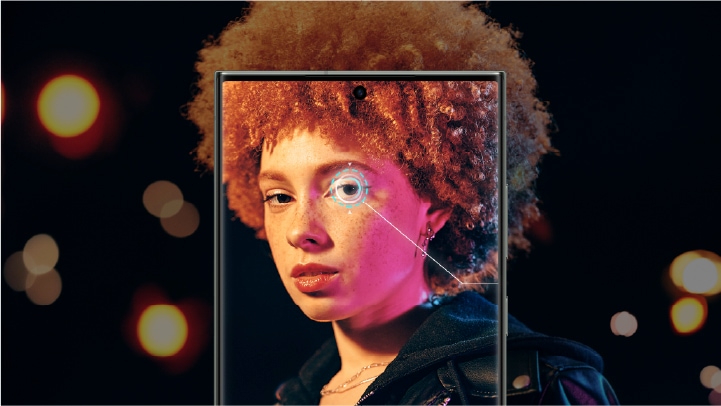
For everyday users, this means no more fumbling with settings or relying on luck. Whether you’re capturing a family portrait or a scenic landscape, your Samsung Galaxy device, like the S25 series, handles the heavy lifting. The appeal is clear: effortless, professional-looking photos at your fingertips. As seen in comparisons, the advancements in Samsung cameras make them stand out, offering consistent quality that rivals dedicated cameras.
What Makes Samsung Cameras So Smart? Understanding Camera AI
At its core, camera AI in Samsung devices refers to software like Galaxy AI that detects subjects—such as landscapes, food, portraits, or pets—and applies real-time adjustments to exposure, contrast, saturation, and white balance. It goes beyond basic filters to intelligent scene optimization ai and recognition. Think of it as having a professional photographer in your pocket, one who instantly understands the scene and optimizes it for the best possible outcome.
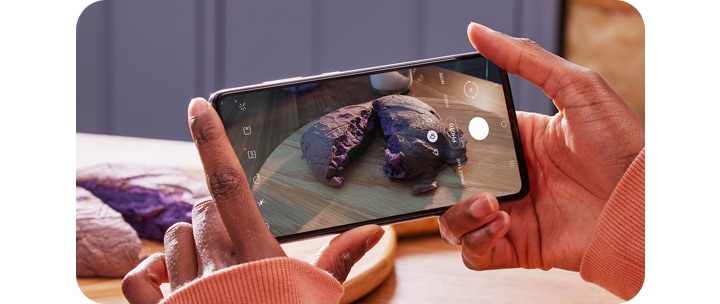
Why does this matter? For non-experts, it simplifies photography. Instead of learning technical terms, you can point and shoot, trusting the AI to deliver vibrant, clear images. This democratization of quality is a game-changer, especially in fast-paced moments where you don’t have time to adjust settings.
Scene Optimization AI: The Real-Time Scene Detective
Dive into scene optimization ai—the system’s brain. Via Galaxy AI’s Scene Optimizer, this feature identifies specific scenes like food close-ups, portraits of people or animals, or landscapes, then automatically optimizes settings for vibrant, clear results. It adjusts saturation, contrast, and white balance specifically for that scene, ensuring that every photo pops with life.
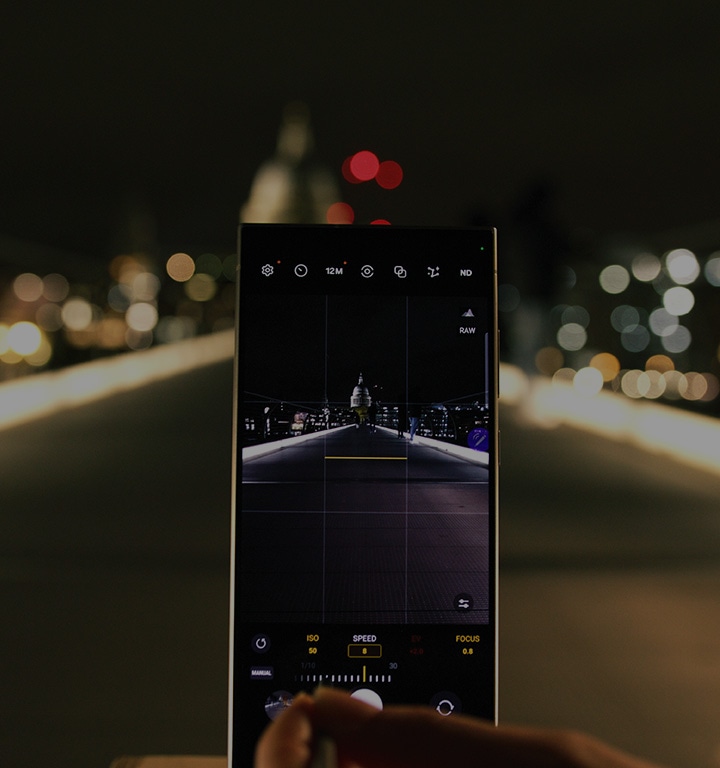
- How it works: The AI uses machine learning to recognize patterns. For example, when you aim at a plate of food, it enhances colors to make the dish look appetizing.
- Real-time processing: Unlike post-editing, these adjustments happen as you frame the shot, so what you see is what you get—a perfectly optimized image.
- Integration with filters: Scene optimization ai works hand-in-hand with samsung ai camera filters, allowing for layered enhancements that are both intelligent and personalized.
This technology isn’t just about detection; it’s about understanding context. A sunset scene gets warmer tones, while a portrait might soften backgrounds to highlight the subject. It’s this nuanced approach that sets Samsung apart.
Photo Enhancement Tools: From Remaster to Generative Edit
Beyond real-time adjustments, Samsung offers robust photo enhancement tools for post-capture magic. These include:
- Photo Assist in the Gallery app: Features like Remaster enhance brightness, contrast, colors, sharpness, and reduce blur with a single tap.
- Generative Edit: This allows users to move, remove, or resize objects by circling areas for AI to fill in seamlessly—think of erasing photobombers or recomposing shots effortlessly.
- ProVisual Engine for zoom: Analyzes multiple frames to sharpen distant subjects, ensuring details aren’t lost even when zoomed in.
- Front camera AI ISP: Captures natural skin texture in challenging lighting, like backlit selfies or telephotos, thanks to new imaging tech.


These tools empower users to fix imperfections or creatively alter photos without professional software. As one review notes, “The ability to edit photos intelligently transforms good shots into great ones.” Whether you’re enhancing an old photo or tweaking a new one, these tools make advanced editing accessible.
Samsung AI Camera Filters: Beyond Static Presets
Now, let’s showcase samsung ai camera filters in depth. Unlike standard static filters, these are context-aware and customizable via “My Filters.” Here’s how they work:

- Personalization: Galaxy AI analyzes a reference photo from your Gallery to extract colors, tones, saturation, and styles, creating a personalized filter that matches your aesthetic.
- Application: Once created, you can apply these filters to photos and videos in real-time, swiping through options in the viewfinder to see instant previews.
- Customization: After creation, you can tweak brightness, saturation, contrast, or add film grain, offering flexibility that basic filters lack.
As demonstrated in tutorials, this feature lets you replicate the look of your favorite photos, ensuring consistency across your gallery. For instance, if you love the warm tones of a sunset shot, you can create a filter that applies those tones to other images. Community forums highlight how users store up to 99 custom filters, making it easy to switch between styles for different occasions.
The key difference? Intelligence. These filters adapt to lighting and subject matter, so they don’t just overlay a preset—they enhance based on context. This makes samsung ai camera filters a powerful tool for both amateur and pro photographers.
The Hardware Behind the Magic: New Imaging Tech
The AI software is supported by cutting-edge new imaging tech. This includes:

- Neural Processing Units (NPUs): Embedded in the chipset, these handle fast AI computations, enabling real-time analysis without lag.
- Advanced Image Signal Processors (ISPs): Such as AI ISP for object-aware processing, which improves details and reduces noise in complex scenes.
- High-resolution sensors: Provide raw data for features like enhanced zoom and noise reduction, as seen in Samsung’s epic 200MP ISOCELL sensors that redefine phone photography.
This hardware foundation ensures that features like scene optimization ai and filter creation are not only possible but also efficient. Without these components, the AI would struggle to deliver the seamless experience users expect. It’s a testament to Samsung’s integration of software and hardware, pushing the boundaries of what mobile cameras can do.
How to Enable Scene Optimization AI on Your Galaxy Device
Ready to put scene optimization ai to work? Follow this simple step-by-step guide:
- Open the Camera app and select Photo mode.
- Tap the settings gear icon (usually in the top corner).
- Look for “Scene Optimizer” and toggle it on.
- Once enabled, the AI will auto-detect scenes and adjust settings in real-time as you frame your shot.

This feature is perfect for quick shots where you want the best possible outcome without manual intervention. For example, when snapping a portrait, the AI will recognize the face and optimize for skin tones and background blur. It’s that straightforward—no expertise required.
Step-by-Step: Creating Your Own AI Camera Filters
Creating and applying samsung ai camera filters is a game-changer for personalization. Here’s how:
- Open the Camera app and enter Photo mode.
- Tap the Effects icon (two overlapping squares).
- Go to the Filters tab and tap “+” or “Create filter.”
- Select a photo from your Gallery as a reference—AI will analyze its colors, tones, and style.
- Name your filter and confirm creation.
- Swipe through filters in the viewfinder to apply yours instantly.
- Capture photos or videos with the filter, or hold “View original” to compare before and after.

This process, as outlined in Samsung’s support guide, allows for endless creativity. Whether you’re going for a vintage look or a bold modern style, you can craft filters that match your vision. Plus, these filters work for both photos and videos, ensuring consistency across your content.
Post-Capture Perfection: Using Photo Enhancement Tools
After taking a shot, you can further refine it with photo enhancement tools. Here’s how to use them:
- In the Gallery app: Select a photo and tap Edit.
- Filters: Tap the three circles icon to adjust intensity or apply new samsung ai camera filters.
- Photo Assist: Use Remaster to automatically enhance details or Generative Edit to remove unwanted objects.
- Fine-tuning: Sliders for brightness, contrast, and saturation let you make manual adjustments if desired.

These tools are designed for ease. As one user shared, “Generative Edit saved my vacation photo by removing a distracting sign in the background.” With such capabilities, post-processing becomes a fun, intuitive part of the photography journey.
Pro Tips for Maximizing Your AI Photography Experience
To get the most out of these features, keep these pro tips in mind:
- Trust auto-AI: For quick shots like portraits or food, rely on scene optimization ai to handle adjustments—it’s optimized for everyday scenarios.
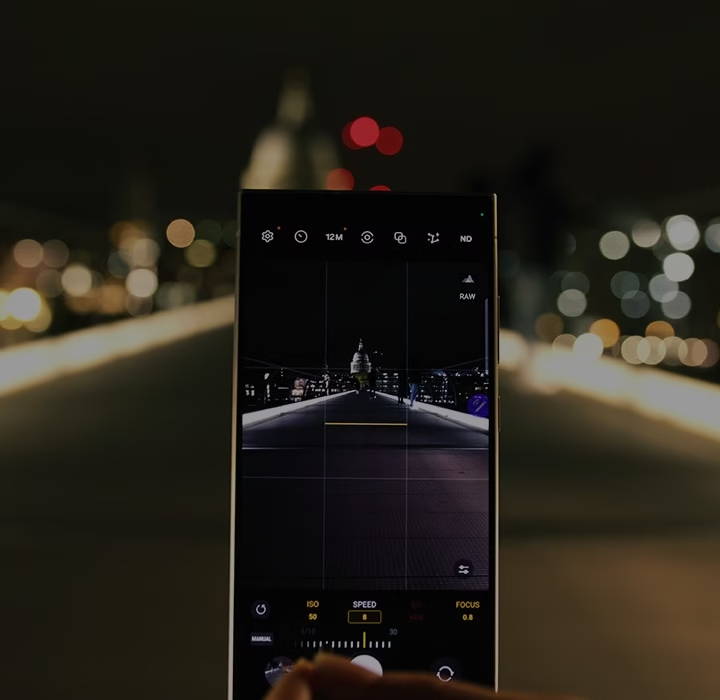
- Switch to manual control: When you need more creative freedom, use Pro mode to tweak settings like ISO and shutter speed.
- Experiment with filters: Create multiple samsung ai camera filters for different moods—store up to 99 for variety.
- Use for videos: These AI tools work for both photos and videos, so apply filters and enhancements to your clips for cohesive content.
- Troubleshooting: If filters aren’t working, clear the Filter Provider app data via Settings > Apps > Show system apps > Filter Provider > Storage > Clear data.
By following these tips, you’ll elevate your photography without a steep learning curve. Remember, the goal is to make technology work for you, not the other way around.
Why It Matters: Benefits for Everyday Photographers
The combination of samsung ai camera filters, scene optimization ai, photo enhancement tools, and new imaging tech delivers consistent professional-quality photos. Benefits include:
- Vibrant scenes: Automatic adjustments ensure colors pop and details are sharp, even in challenging lighting.
- Blur-free shots: AI stabilization and noise reduction keep images clear, whether you’re zooming in or shooting in low light.
- Custom styles: Personalized filters let you express your unique aesthetic without manual editing.
- Accessibility: High-quality mobile photography is now accessible to everyone, no expert skills required—perfect for capturing daily moments like family portraits or travel landscapes.

As resources on improving smartphone photography skills suggest, these tools empower users to focus on creativity rather than technical hurdles. Plus, with long battery life in powerful smartphones, you can shoot all day without worry.
The Future is AI: Embracing Intelligent Photography
Looking ahead, samsung ai camera filters and Galaxy AI tools, backed by cutting-edge new imaging tech, are set to transform mobile photography further. Automated scene analysis and personalization on devices like the Galaxy S25 series make pro-level imaging available to everyone. The journey doesn’t end here—Samsung’s upcoming innovations promise even more intelligent features.
So, why not experiment with these features today? Capture a moment, apply a custom filter, or let the AI optimize your shot. Share your enhanced photos and experiences in the comments—we’d love to see how you’re using AI to elevate your photography.
Frequently Asked Questions
What are Samsung AI camera filters?
Samsung AI camera filters are intelligent, customizable filters powered by Galaxy AI that analyze reference photos to create personalized styles. Unlike basic filters, they adapt to context and can be tweaked for brightness, saturation, and more. Learn more from Samsung’s support guide.
How does scene optimization AI work?
Scene optimization AI uses machine learning to detect scenes like portraits or landscapes in real-time and automatically adjusts settings such as contrast and saturation for optimal results. It’s enabled via the Scene Optimizer toggle in the Camera app. Details are covered in this Tom’s Guide article.
Can I use AI filters on videos?
Yes, Samsung AI camera filters and enhancement tools work for both photos and videos. You can apply custom filters during recording or in post-editing for consistent styling across your content.
What is the difference between AI filters and standard filters?
AI filters are context-aware and personalized, using AI to analyze and adapt to each scene, while standard filters are static presets that apply the same effect regardless of content. AI filters offer more nuanced enhancements and customization options.
How many custom filters can I save?
You can store up to 99 custom filters on your Samsung Galaxy device, allowing for a wide range of styles to suit different occasions and moods.
What if my filters aren’t working properly?
If you encounter issues, try clearing the Filter Provider app data via Settings > Apps > Show system apps > Filter Provider > Storage > Clear data. This often resolves glitches and restores functionality.